
With ThemeWare® you display the product safety information on your product pages without any programming: you maintain the manufacturer information and the responsible person on the manufacturer or on the product, and ThemeWare® shows them in the description, in the manufacturer tab or in a tab of their own. How this works is explained in the section ThemeWare® is GPSR-ready.
General Product Safety Regulation (GPSR): obligations for retailers
The EU General Product Safety Regulation (GPSR) obliges retailers to provide certain safety and contact information for their products, such as manufacturer details and the responsible person in the EU.
Disclaimer: This information gives you a general overview, but it does not replace legal advice. For specific questions or individual concerns, we recommend consulting a qualified lawyer or legal advisor to ensure legal certainty.
Adding manufacturer information according to the GPSR
You can add manufacturer information (e.g. the "responsible person") according to the GPSR in Shopware 6, for example, via the HTML editor of the respective manufacturer.
"Catalogues" => "Manufacturers" => area "Manufacturer information" => field "Description"
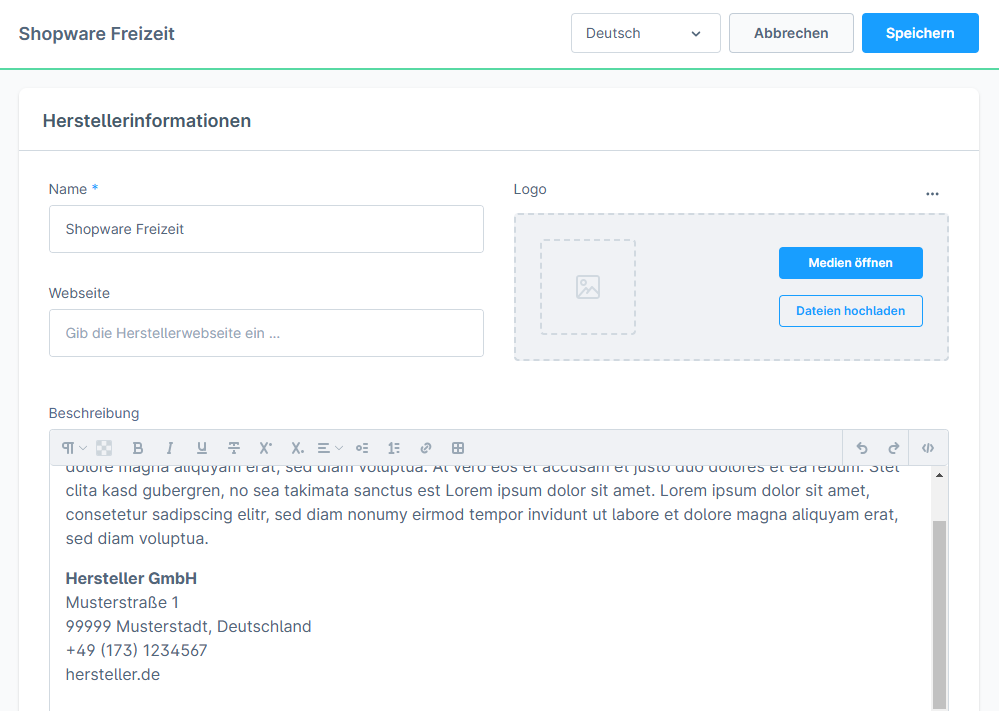
Shopware ⇒ Manufacturer information
You can then integrate this manufacturer information into your storefront with the ThemeWare® manufacturer tab.
Tab "Product pages" => block "Manufacturer (in tabs)" => configuration "Show manufacturer" (value "show in a separate tab")
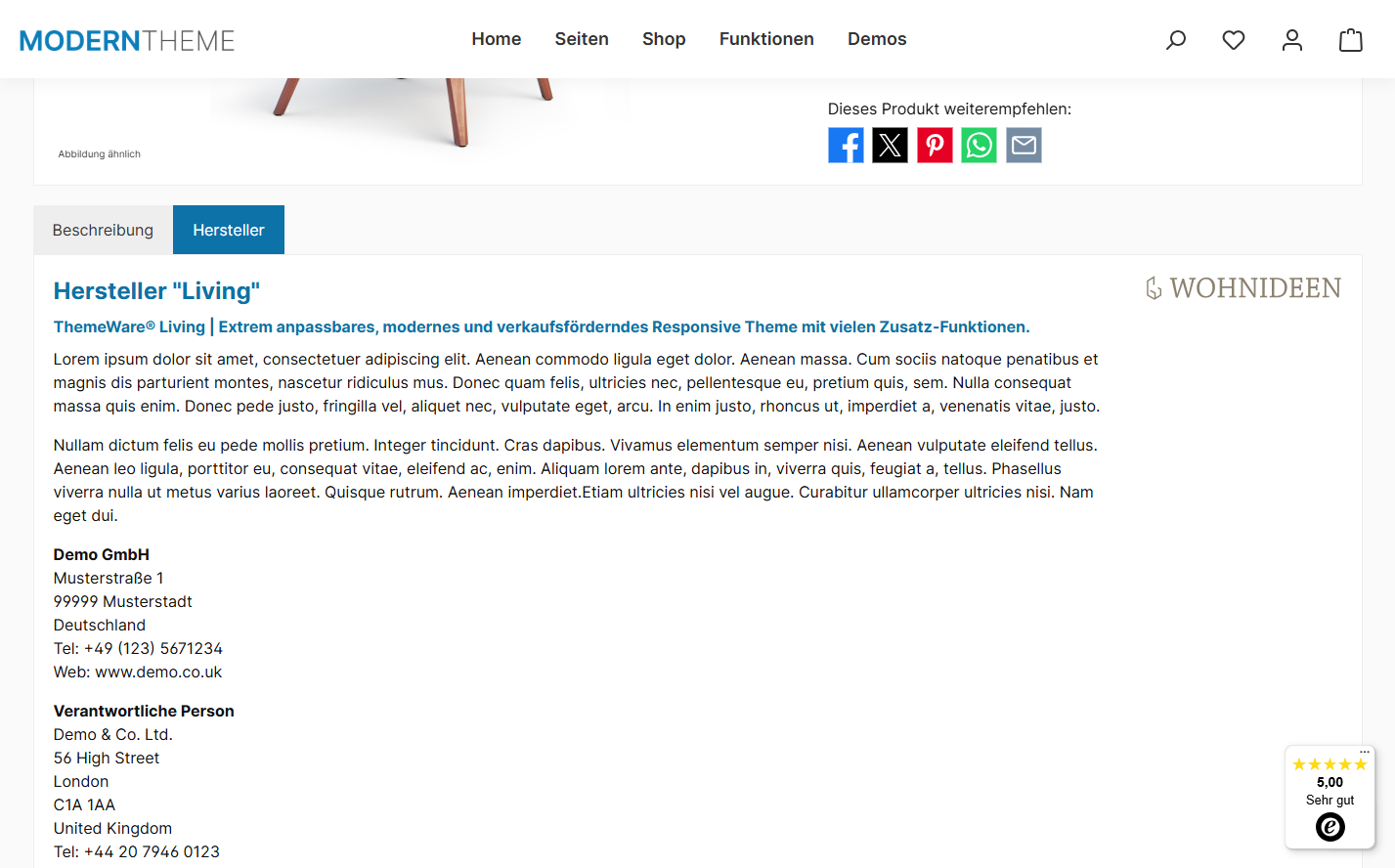
Storefront ⇒ Manufacturer information
Adding product information for the GPSR
You can add product information via the HTML editor of the product description of the respective product. This information is automatically displayed in the "Description" tab on the product page.
"Catalogues" => "Products" => tab "General" => area "General information" => field "Description"
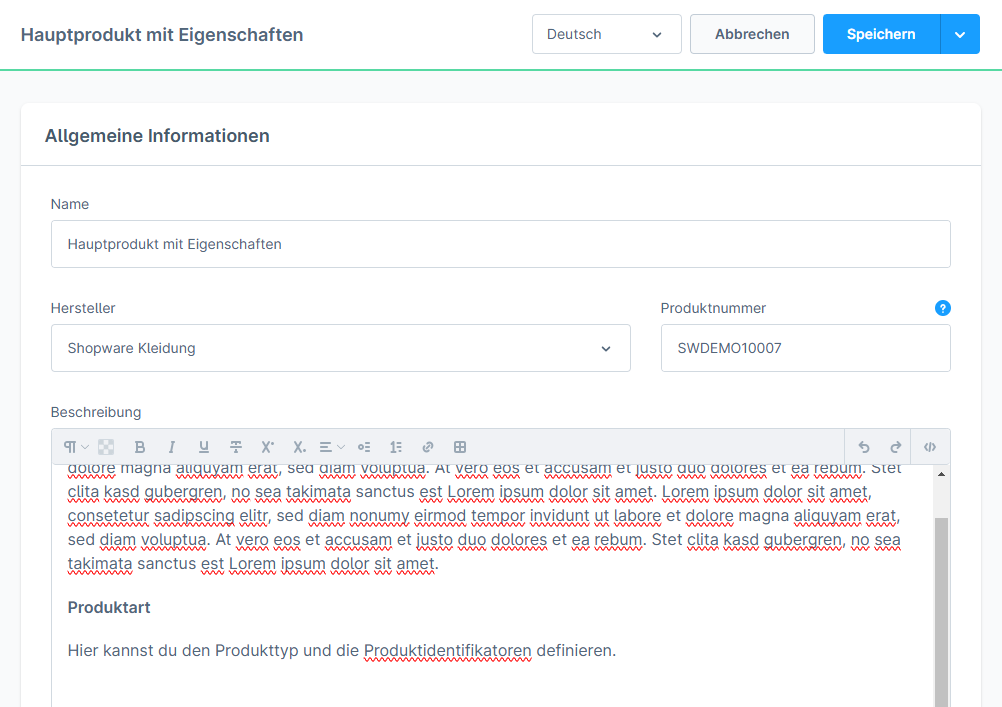
Shopware ⇒ Product information
Example
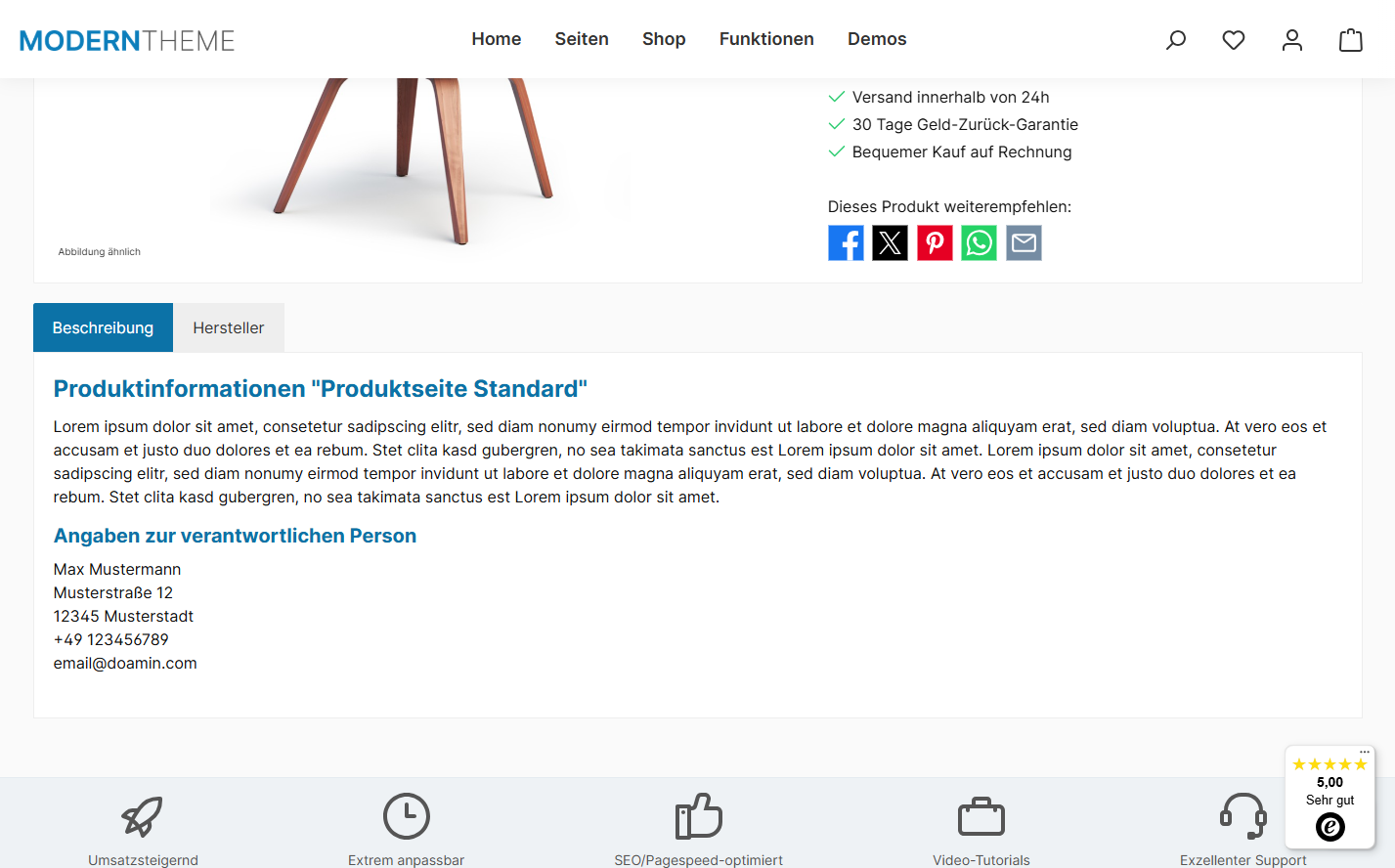
Storefront ⇒ Product description
Displaying GPSR information in a tab of its own
For product information (e.g. "safety notes") you can also use the ThemeWare® tab "Custom content".
You activate it in the ThemeWare® configuration:
Tab "Product pages" => block "Tab 'Custom content'" => configuration "Show custom tab"
If you now fill the corresponding custom field (Custom tab – Text) in a product, this tab is displayed on the product detail page.
"Catalogues" => "Products" => tab "Specifications" => section "Custom fields" => tab "Products (ThemeWare® ...)" => custom field "Custom tab – Text"
For the title of the tab you can use the snippet twt.detail.tabCustom.title globally or the custom field Custom tab – Title.
Example
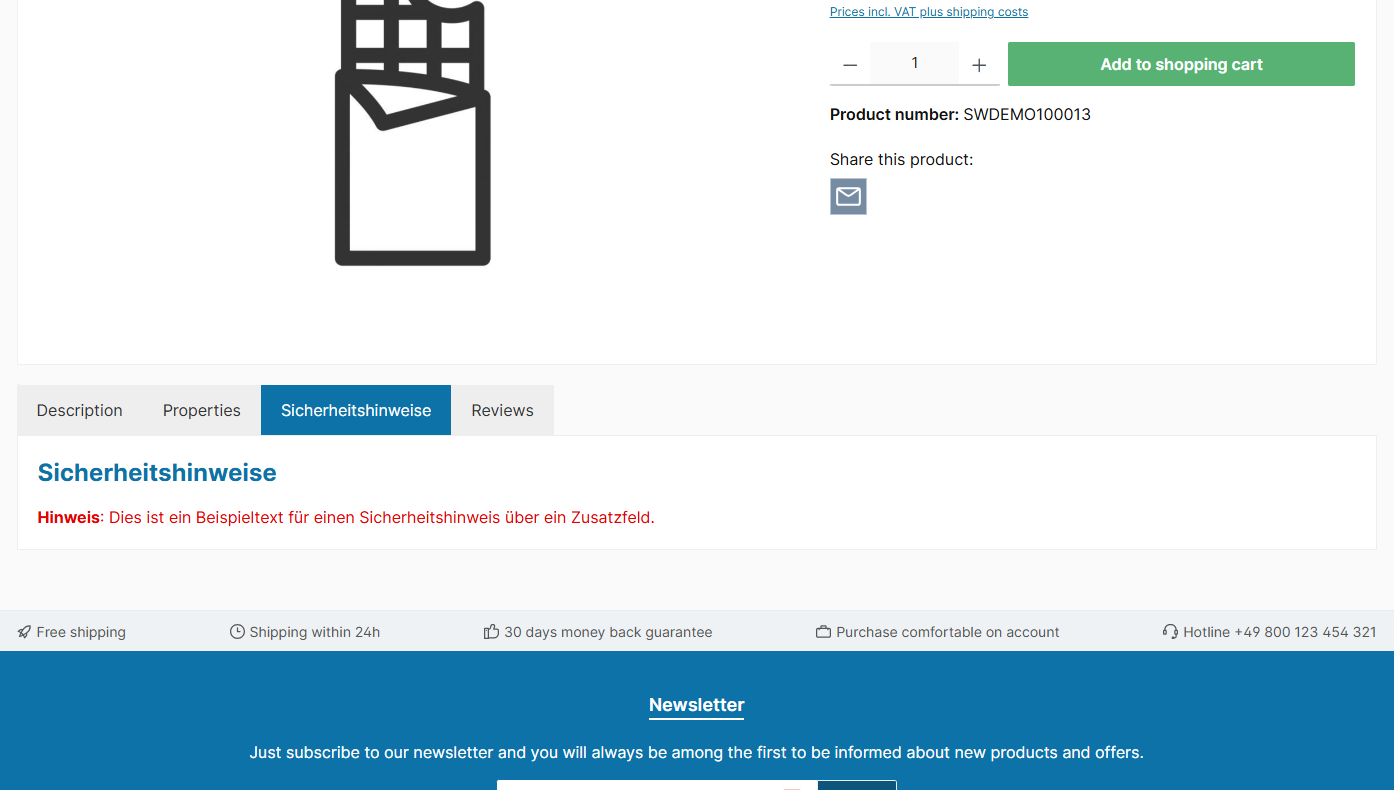
ThemeWare® custom tab
Adding GPSR information via custom fields
If you need information for which ThemeWare® has no field, such as a safety note of your own, you create a custom field for it and add it yourself. Neither Shopware nor ThemeWare® know where a custom field of your own should appear.
Creating a custom field
- Open "Settings" => "System" => "Custom fields" and create a new custom field set, e.g. with the technical name
custom_gpsr, the labelGPSR (Products)and "Products" as the entity - In this set, create a new custom field, e.g. of the type
Text editorwith the technical namecustom_gpsr_safety_noteand the labelSafety note - Fill the field in the product under tab "Specifications" => area "Custom fields"
Displaying the GPSR custom field in the storefront
You display a custom field of your own either via a CMS element in the shopping experience layout of your product page or via a template customisation.
Displaying the custom field in a shopping experience
From Shopware 6.6.9 you insert a custom field into a text element of your shopping experience, either via "Data mapping" or as a variable, for example {{ product.customFields.custom_gpsr_safety_note }}. The steps with images are described in the tutorial Show custom fields in Shopping Experiences.
Tip: If necessary, add the CSS class twt-cms-block-reset to the CMS block to deactivate the ThemeWare® CMS styling for this block.
Displaying the custom field with a template customisation
In the following step-by-step guide we add the custom field "Safety note" to the product detail page in the storefront with our free ThemeWare® Customizing Plugin.
Note: You will find more information on template customisations in the section Individual customizations.
Attention: Never edit original files of Shopware or of extensions (plugins, apps or themes)!
1) Create the template file
The product description is loaded into the storefront via the template file description.html (see GitHub).
So create the file description.html.twig. If you use the ThemeWare® Customizing Plugin, create the file in the following folder:
src/Resources/views/storefront/component/product/2) Extend the original template
Extend the original Shopware file as follows:
{% sw_extends '@Storefront/storefront/component/product/description.html.twig' %}3) Inherit the Twig block
The description is in the Twig block component_product_description_content. Inherit the block as follows:
{% sw_extends '@Storefront/storefront/component/product/description.html.twig' %}

{# GPSR: output custom field "Safety note" #}
{% block component_product_description_content %}
    {# Default block #}
    {{ parent() }}
{% endblock %}
4) Insert the custom field
Now insert the custom field (⇒ custom_gpsr_safety_note) after the actual block content (⇒ {{ parent() }}):
{% sw_extends '@Storefront/storefront/component/product/description.html.twig' %}

{# GPSR: output custom field "Safety note" #}
{% block component_product_description_content %}
    {# Default block #}
    {{ parent() }}

    {{ page.product.translated.customFields.custom_gpsr_safety_note|raw }}
{% endblock %}
5) Upload the template file
If you use our free Customizing Plugin, upload the new template file to your web server into the directory:
custom/plugins/TcinnCustomizing/src/Resources/views/storefront/component/product6) Clear the cache
Finally, clear the Shopware cache and your browser cache so that the change is displayed in the storefront.
Example
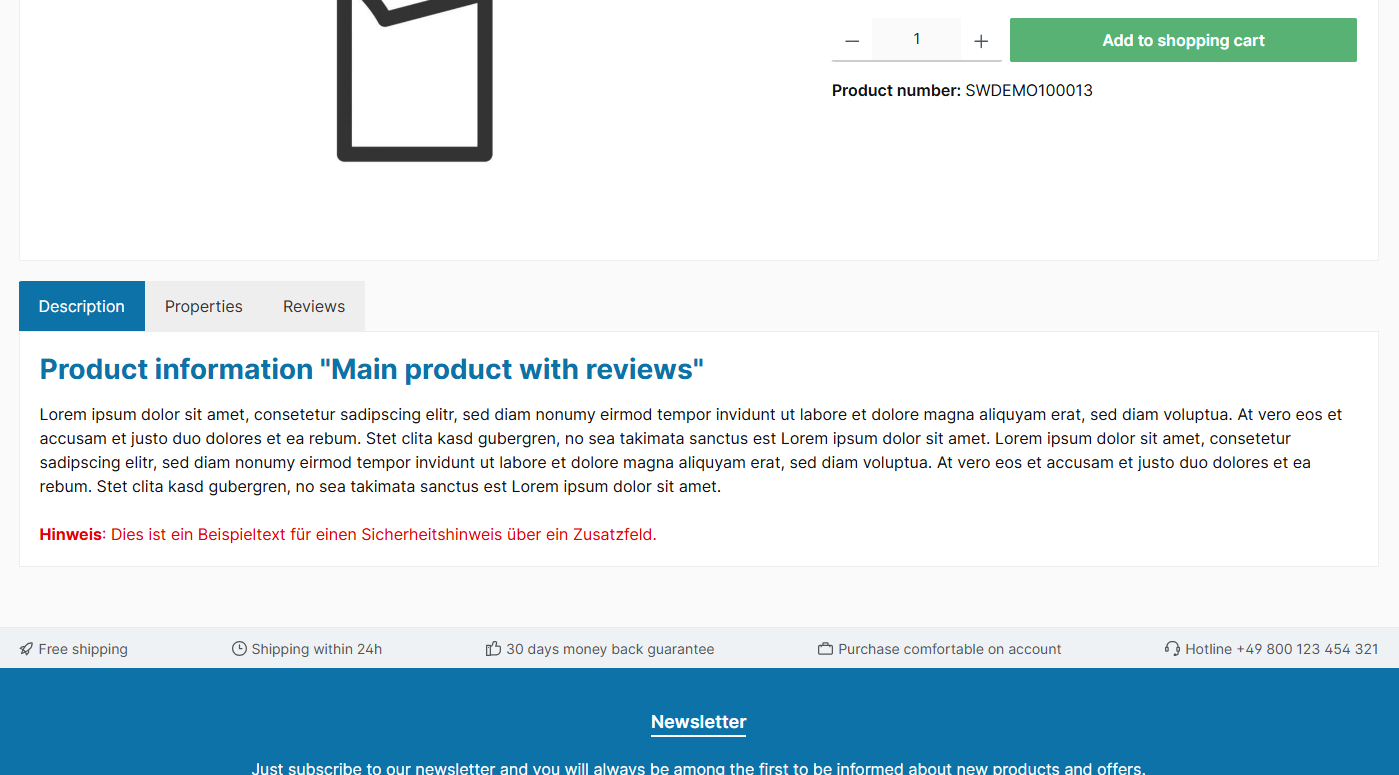
Custom field in the description
ThemeWare® is GPSR-ready: product safety without programming
Custom fields of your own basically work in every Shopware theme. With ThemeWare® you implement the GPSR in Shopware 6 even more easily: your storefront is GPSR-ready out of the box. You maintain the manufacturer information and the responsible person directly in the Shopware back end, and ThemeWare® displays them automatically on your product pages, in line with the GPSR, uniformly designed and flexibly placed. Without templates or additional plugins.
Your advantages with ThemeWare®
- No programming: ThemeWare® brings the suitable custom fields and the finished storefront output, no template customisation, no additional plugin.
- Manufacturer and product level: maintain the GPSR information centrally on the manufacturer and override it for individual products if necessary.
- Flexible placement: show the information in the product description, in the manufacturer tab or in a tab of its own, "Product safety information".
- Separately controllable: manufacturer information and responsible person can be shown and hidden individually.
- Consistent design: the information fits seamlessly and professionally into your theme.
GPSR custom fields included: ThemeWare® creates the required custom fields "Manufacturer information" and "Responsible person" automatically, both on the manufacturer and on the product. You do not have to create them manually.
GPSR-compliant in 3 steps
1) Maintain the GPSR information on the manufacturer
Add the GPSR information in the custom fields of the respective manufacturer:
"Catalogues" => "Manufacturers" => [select manufacturer] => area "Custom fields" => fields "Manufacturer information" and "Responsible person"
The information then applies to all products of this manufacturer.
Override per product: If you want to show different information for a single product, fill the custom fields of the same name directly in the product ("Catalogues" => "Products" => tab "Specifications" => area "Custom fields"). For this product, they override the information of the manufacturer.
2) Activate the information
In the ThemeWare® configuration, specify which of the two GPSR details should be displayed:
Tab "Product pages" => block "GPSR – Product safety (in tabs)" => configuration "Show manufacturer information (GPSR)"
Tab "Product pages" => block "GPSR – Product safety (in tabs)" => configuration "Show responsible person (GPSR)"
3) Choose the placement
Finally, determine where the product safety information appears:
Tab "Product pages" => block "GPSR – Product safety (in tabs)" => configuration "Show product safety (GPSR)"
The options are:
- don't show
- show in the description
- show in the manufacturer tab
- show in a separate tab (tab "Product safety information")
Tip: You can adjust the title of the tab "Product safety information" with the snippet twt.detail.tabGpsr.title.
Further information
We have compiled more information on the GPSR in the following news article: