
This article is about typography, that is, we show you how to configure the fonts in your shop.
Example
You configure fonts through the ThemeWare® configuration in the Shopware 6 theme manager of your administration.
Example: In our example we change the font for headlines to the font "Helvetica".
- Open the administration of your shop
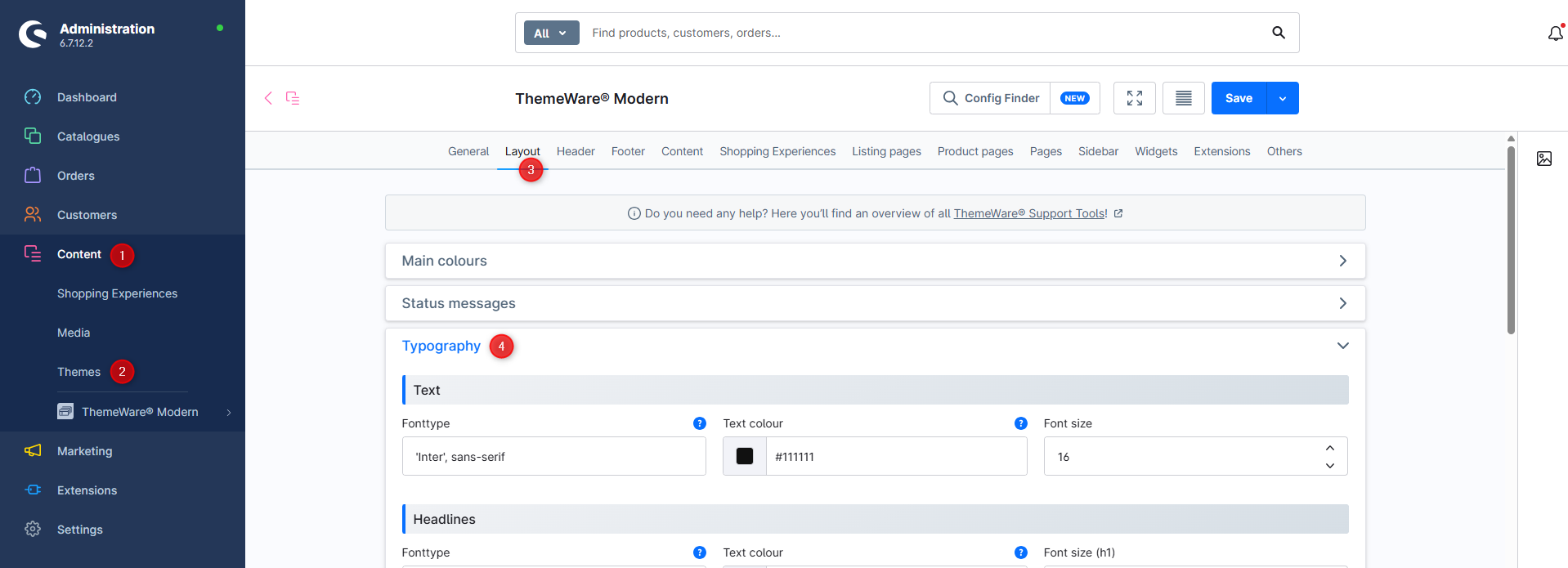
- Switch via the main navigation to the "theme administration" (1) (2) ("Content" => "Themes")
- Note: In the Shopware Cloud you will find the "Themes" area directly in the main navigation.
- Now click on your ThemeWare® theme to start editing
- Switch to the tab "Layout" (3)
- Open the block "Typography" (4)
- In the section "Headlines" change the Fonttype to
'Helvetica', sans-serif - Scroll to the section "Font weight"
- In our example it is configured as
Light: 400,Normal: 400andBold: 600. - Select the font weights available in the font you have chosen.
- In our example it is configured as
- Save the theme configuration
- Switch to the storefront and reload the page
You have now changed the font for the headlines in your storefront.
Screenshots
The ideal approach to configuring fonts
Always configure the font first and only then the font size and the font weight.
Fonts are very individual and depending on the font the size and the weight take effect differently.
Tip: It makes sense to use a plain, clearly legible font for the text. If you want to use a more ornate font, then at most in the headline.
Font configuration for shop elements
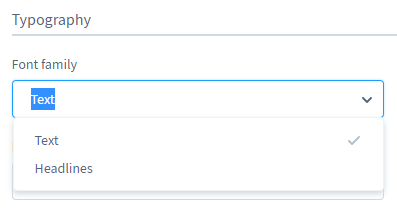
There are a few blocks in the theme configuration (for example the "Top navigation" in the tab "Header" or in the ThemeWare® CMS elements) where you can choose whether you want to use the font configured for "Text" or for "Headlines".
Further information
- Basic knowledge: You can find more information on the topic "font configuration" in the article Font configuration
- Knowledge: Everything about "Google Fonts" is covered in the article Google Fonts