
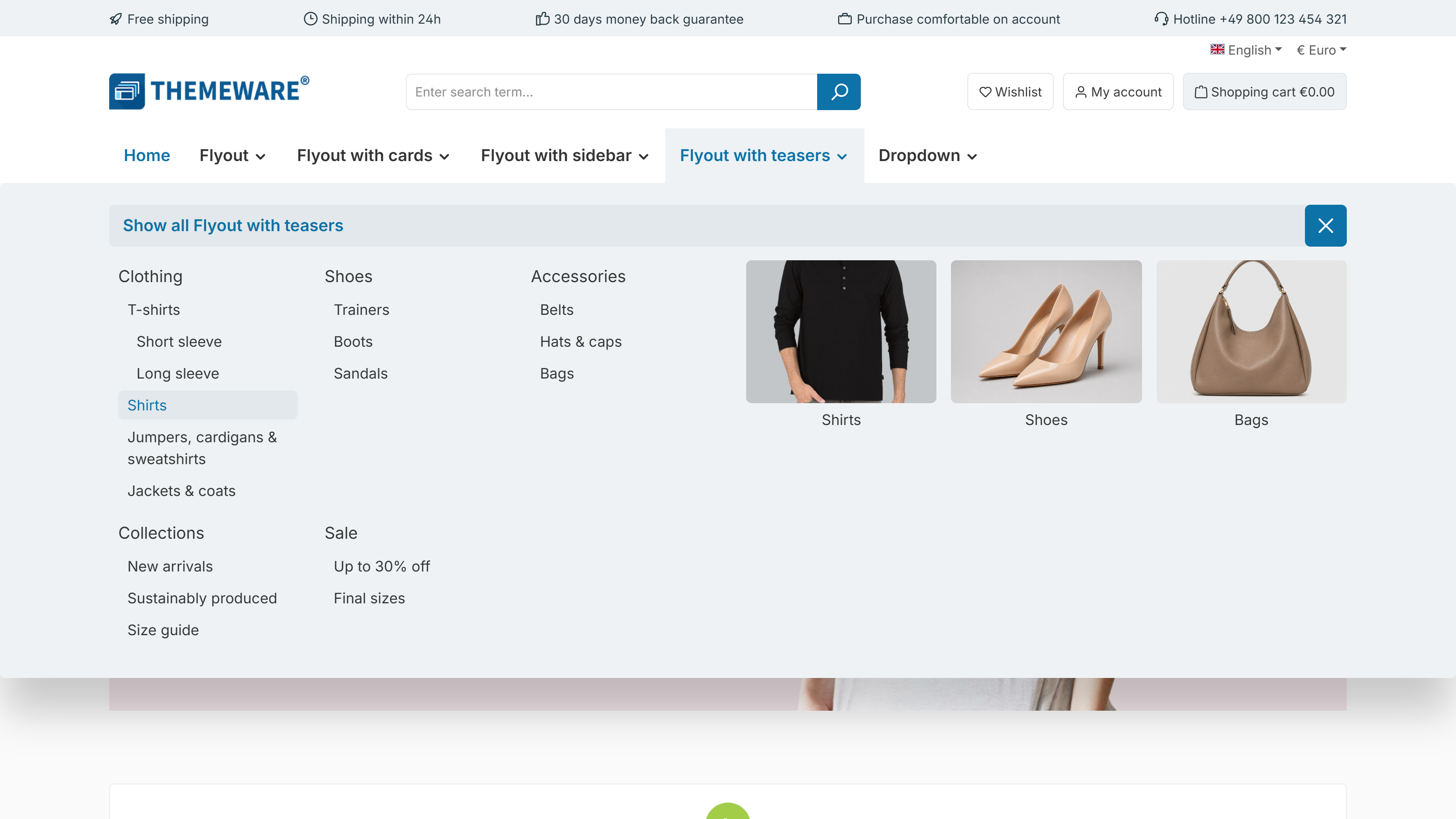
With ThemeWare® you extend the flyout of your top navigation with up to three teasers featuring an image, text and link. Highlight promotions, topic worlds or top products right in the mega menu and guide your customers straight from the navigation to the matching destination.
Note: The teasers are maintained per category via custom fields and appear next to the subcategories in the "ThemeWare® Flyout" as soon as you select the matching flyout type in the theme configuration.
Requirements
- a category in the top navigation whose flyout you want to extend with teasers
- one to three images for the teasers in the Shopware media manager
- optionally the target URLs (links) for the teasers
Step 1: Choose the flyout type in the theme
"Theme Manager" => your ThemeWare® theme => "Header" tab => "Top navigation flyout" block
The "Top navigation flyout" field offers several ways to display the submenus (see the "More flyout modes" section below). For the teasers, choose "ThemeWare® Flyout with teasers" and save your changes.
Step 2: Add the teasers to the category
"Catalogues" => "Categories" => select category => "General" tab => "Custom fields" block => "Flyout (... Pro)" custom field set
Fill in the following custom fields per teaser (up to 3 teasers are available):
- Flyout teaser 1–3 – Image – the teaser image from the media manager
- Flyout teaser 1–3 – Text – the text below the image
- Flyout teaser 1–3 – Link – the target URL; the whole teaser is clickable
Save the category.
Note: Leave the image empty to hide a teaser. The image's alternative text is taken from the media manager.
Result
When you open the category's flyout in the top navigation, the teasers now appear next to the subcategories. If nothing shows up, clear the Shopware cache once.
ThemeWare® Tip: Use meaningful alternative texts in the media manager – they improve accessibility and SEO. If you want to set the flyout type differently for a single category, use the category custom field "Top navigation flyout".
More flyout modes
The "Top navigation flyout" field generally controls how the submenus of your top navigation are displayed – the teasers are just one of several modes:
- Shopware default – the native Shopware navigation (without the ThemeWare® flyout)
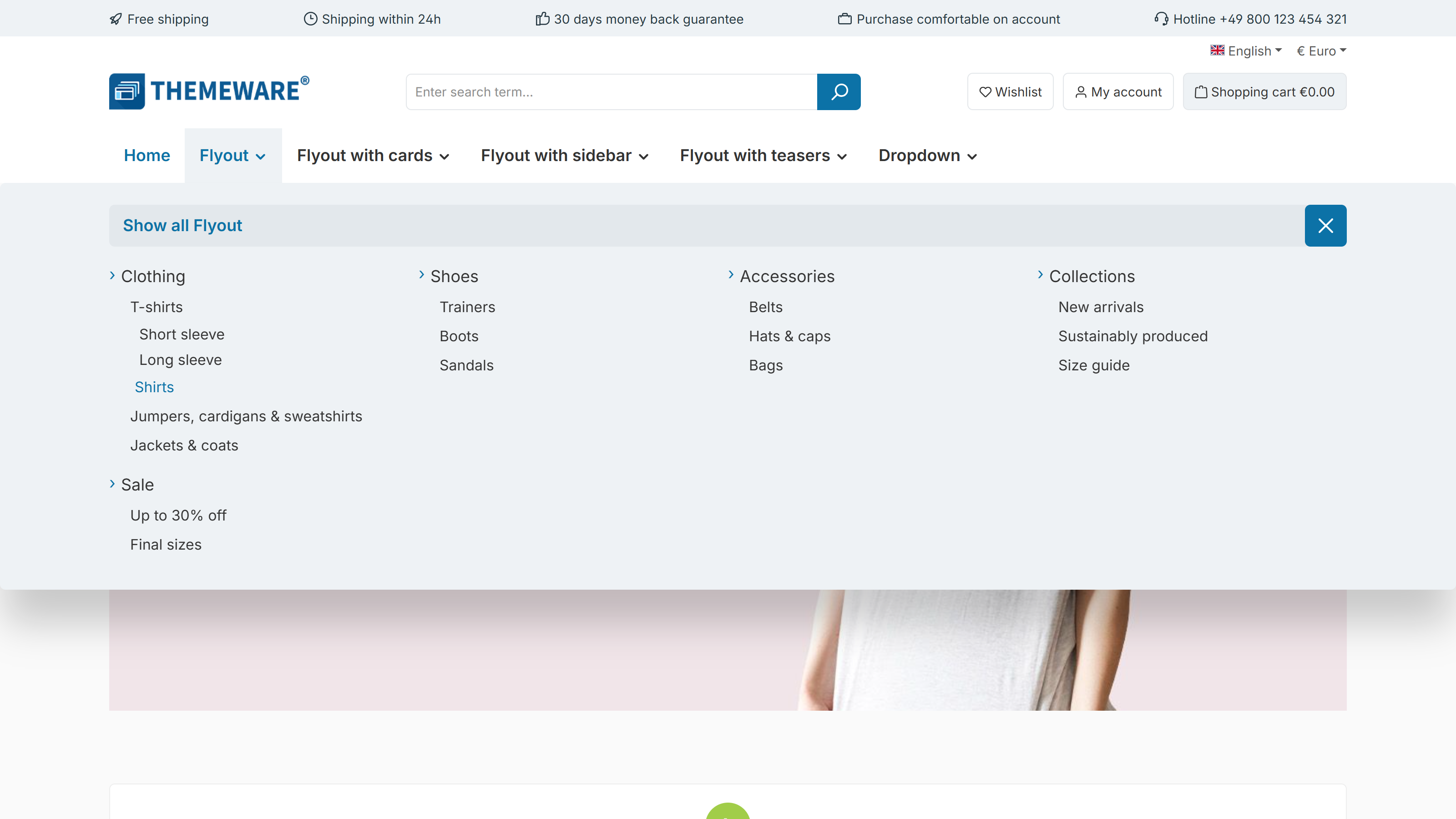
- ThemeWare® Flyout – the standard flyout with the subcategories
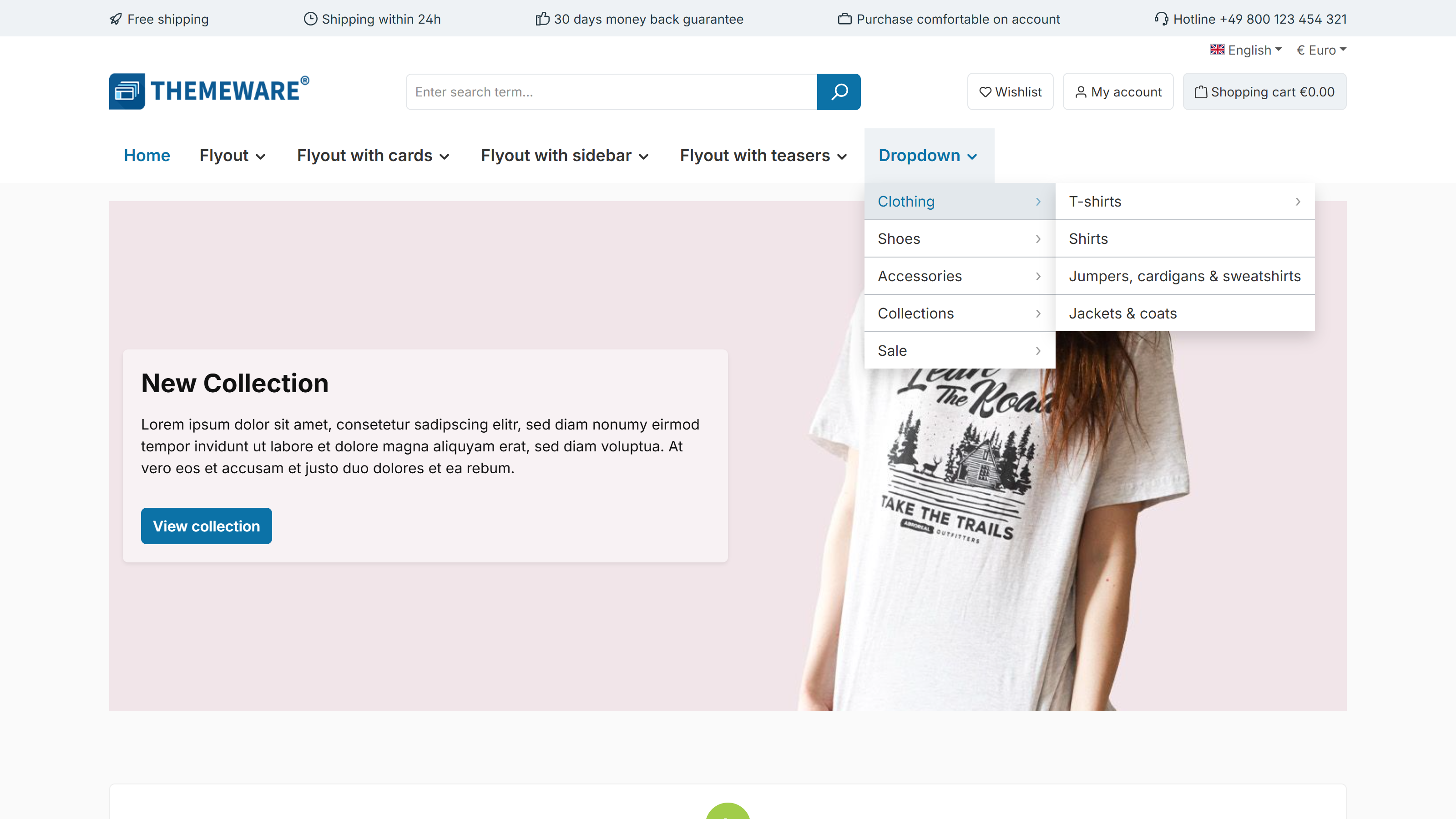
- ThemeWare® Dropdown – the submenus as a compact dropdown
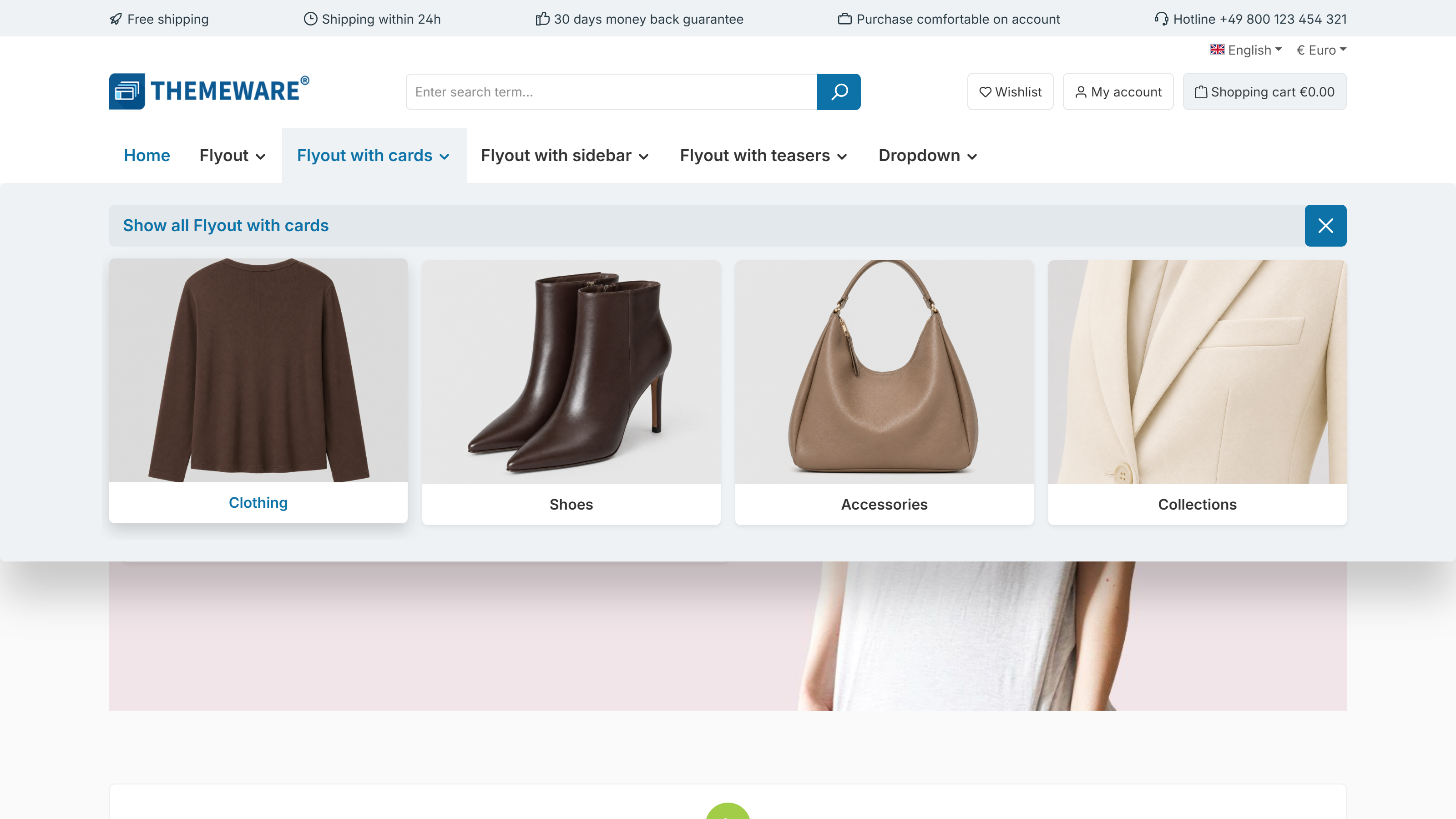
- ThemeWare® Flyout with cards – shows the direct subcategories as image cards
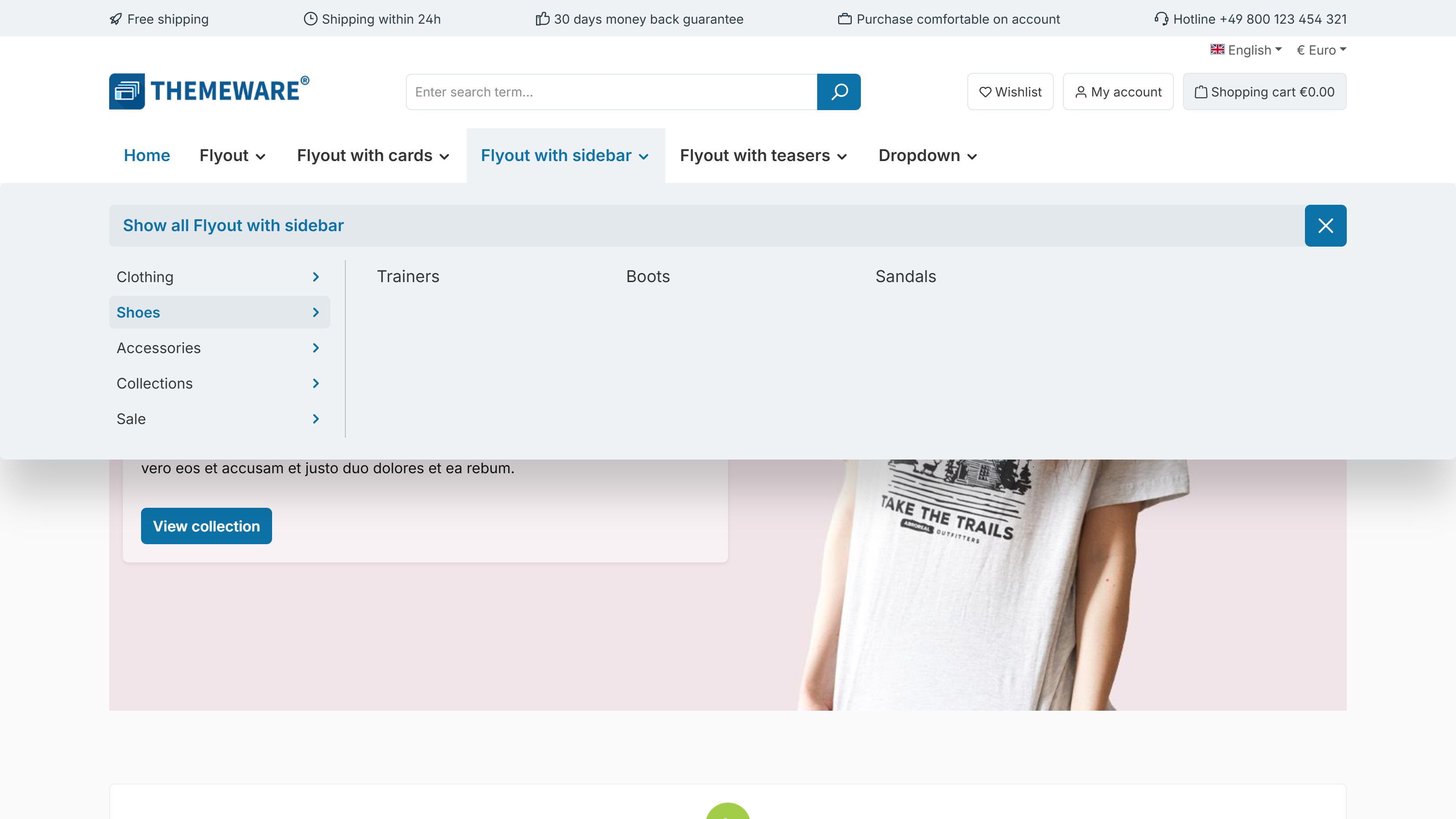
- ThemeWare® Flyout with sidebar – flyout with a side navigation bar
- ThemeWare® Flyout with teasers – the flyout with teasers described in this guide
Note: You set the mode globally in the theme configuration. Using the category custom field "Top navigation flyout" you can override it per category – this only takes effect if the global setting is not "Shopware default".
Layout examples
Appearance of the menu items
Regardless of the mode, you decide how the individual menu items in the submenu look.
"Theme manager" => your ThemeWare® theme => "Header" tab => "Top navigation flyout" area => "Basic configuration 'ThemeWare® Flyout'" section => "Style" field
- List (Shopware 6) – a line to the left of the categories
- List – arrows in front of the categories
- List in columns (Shopware 5) – the arrangement from Shopware 5's "Advanced Menu"; only applies to the "ThemeWare® Flyout" mode
- Buttons – every category gets its own surface with rounded corners
The dropdown has its own selection in the "Basic configuration 'ThemeWare® Dropdown'" section: "List", "Buttons (compact)" and "Buttons".
You set the colours of the surfaces and the glass effect in the same area in the "Colour configuration" section – via "Background colour (menu items)" including @hover and @active as well as "Glass effect [px] (panel)".
ThemeWare® tip: The glass effect blurs the page content behind the submenu. It only becomes visible once you choose a semi-transparent colour for the "Background colour (panel)" – a value of 10 is a good starting point.
Further information
You can find all layout types and styles with example images in the ThemeWare® manual:
All configuration fields of the flyout in detail:
The teaser custom fields in detail: