
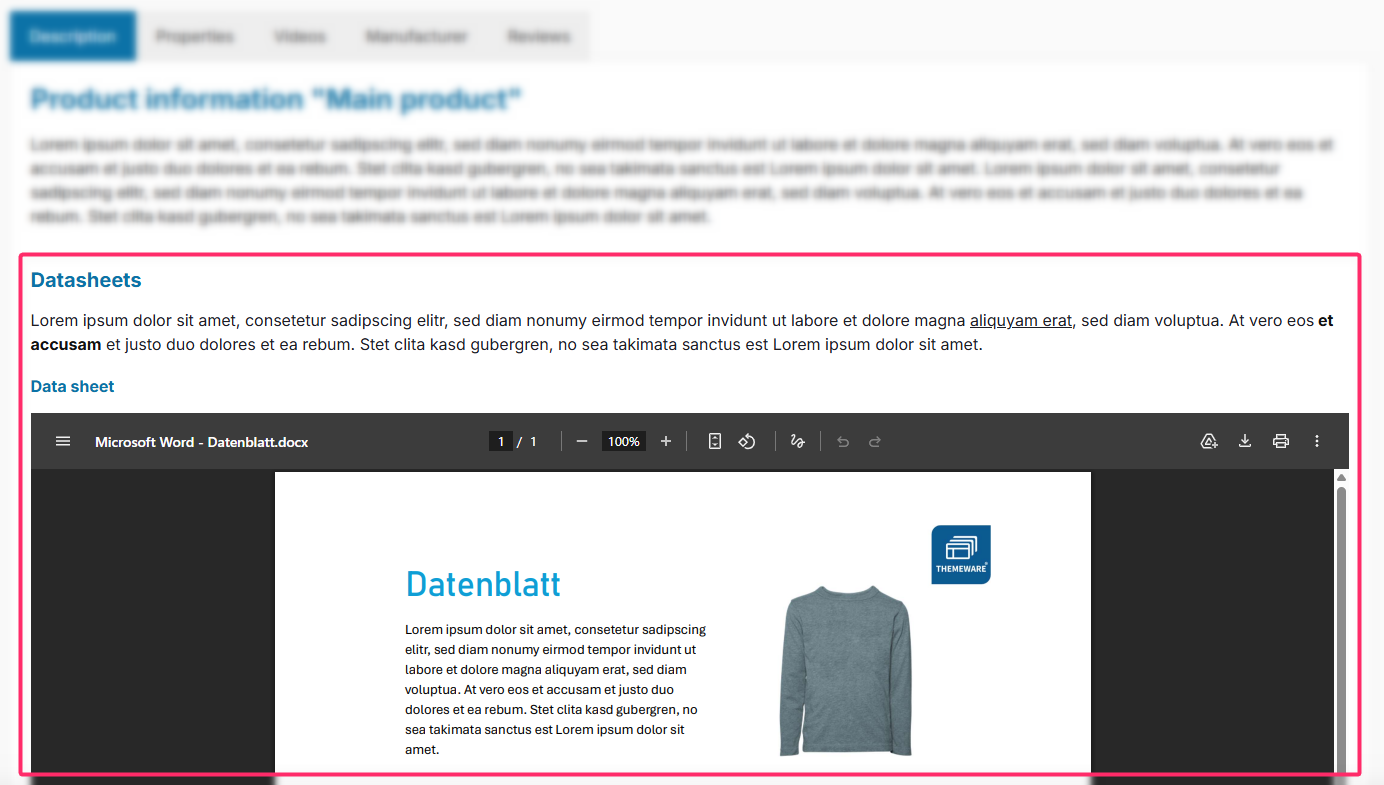
With ThemeWare® you provide technical datasheets as PDF right on the product page – either in the description tab or in a dedicated datasheets tab, with an embedded preview and download link. This way your customers find all important product information in one place.
Note: The datasheets are maintained per product via custom fields and appear as soon as you enable them in the theme configuration and have added at least one datasheet (Datasheet 1–3).
Requirements
- a product you want to assign a datasheet to
- a PDF file in the Shopware media manager
Step 1: Enable datasheets in the theme
"Theme Manager" => your ThemeWare® theme => "Product pages" tab => "Tab "Description"" block => "Datasheets" section
At "Show datasheets" select where the datasheets should appear: "show in the description" or "show in a separate tab". With "Show preview" you define whether the embedded PDF preview is shown in the description tab – in the separate tab it is always displayed, and the download link remains available at all times in both cases. Save your changes.
Step 2: Add the datasheet to the product
"Catalogues" => "Products" => select product => "Specifications" tab => "Custom fields" section => "Datasheets" custom field set of your theme
Fill in the matching custom fields:
- Datasheet 1–3 – select a PDF file from your media manager for each
- e.g. "aero-mini_data-sheet_en.pdf"
- Datasheet 1–3 – Title – the desired link text for the respective datasheet
- e.g. "Aero Mini Data Sheet"
- Datasheets (Text) – optional description text above the datasheets
- e.g. "Download the data sheet for the Aero Mini as a PDF. It contains all key technical specifications, product features, and dimensions."
Save the product.
Note: Whether the description text comes from the custom field, the snippet or both is controlled in the theme configuration via the "Description text" configuration. You can find all custom fields and options in detail in the ThemeWare® manual (see below).
Result
The datasheets now appear on the product page at the chosen position. If nothing shows up, clear the Shopware cache once.
ThemeWare® Tip: Use meaningful titles (custom field "Datasheet 1–3 – Title") – they are used as the link text and improve accessibility and SEO. Adjust the subheadline above the datasheets via the snippet twt.detail.datasheets.title.
Further information
You can find all configuration options and custom fields in detail in the ThemeWare® manual: