
In this article we give you an overview of the theme configuration in the theme manager.
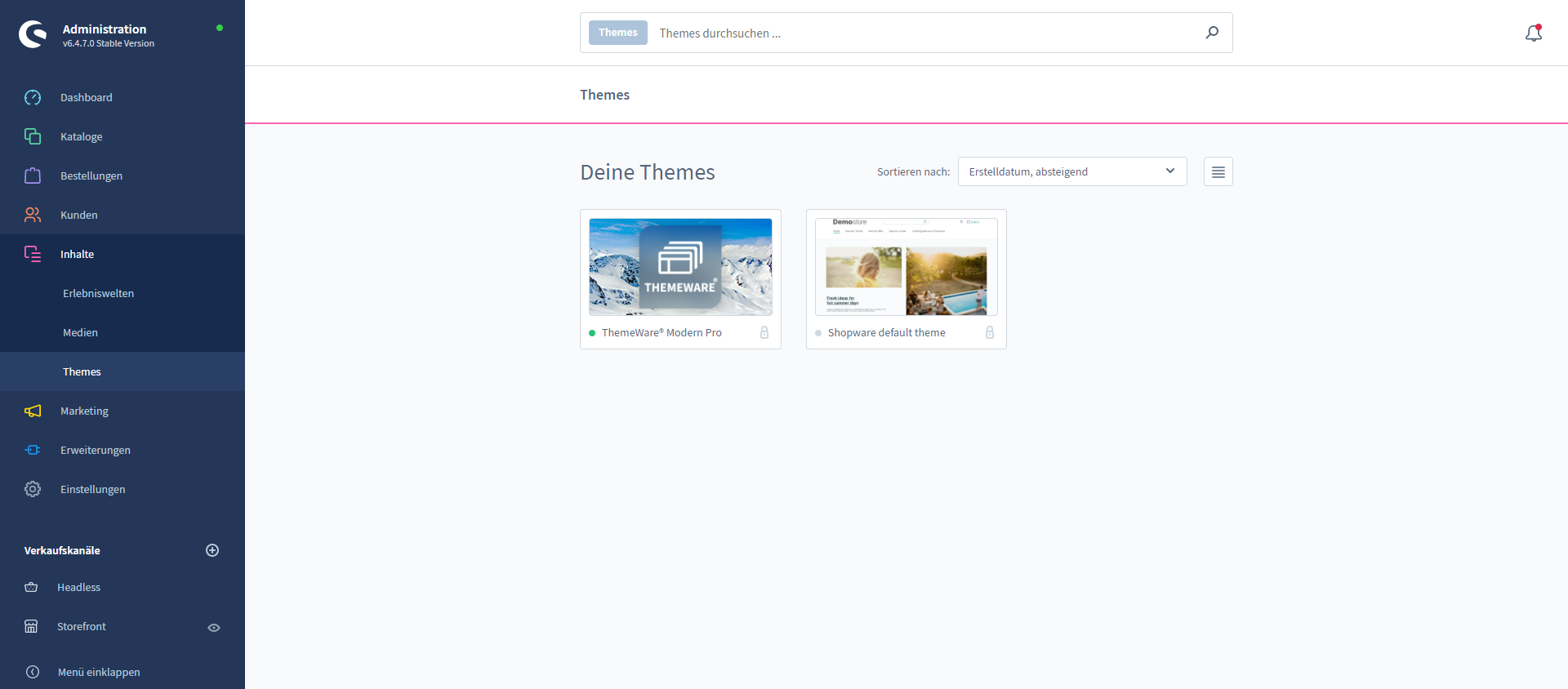
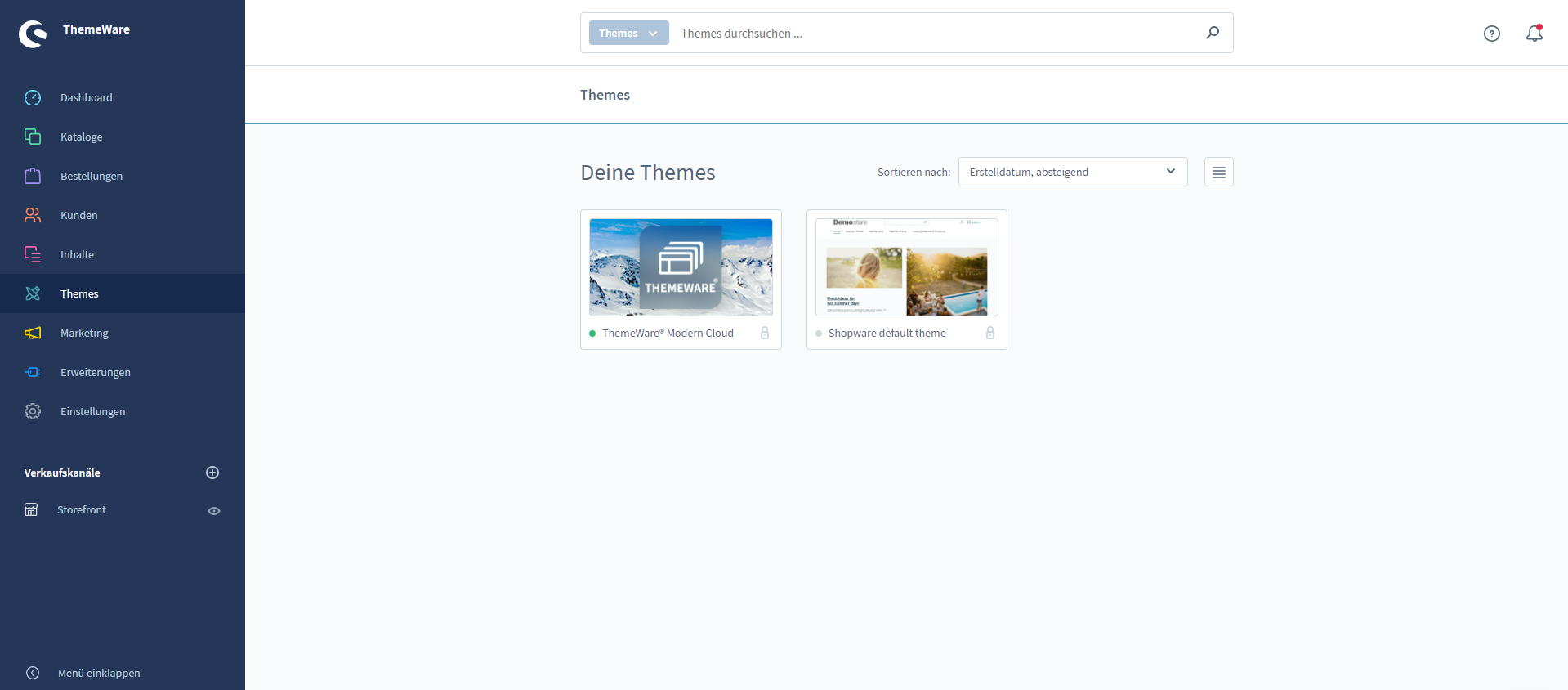
The theme manager is the theme administration in the administration. You reach it via the main navigation "Content" => "Themes". (Note: In the Shopware Cloud you will find the "Themes" area directly in the main navigation.)
In the theme overview you will find all installed and activated themes of your system.
Click the theme in question to get to its theme configuration.
Screenshots
Theme configuration
The ThemeWare® theme configuration differs from the standard theme configuration in Shopware 6. We have integrated a number of useful improvements and improved the presentation of the configuration. (Note: In the Shopware Cloud these improvements are currently not possible.)
The ThemeWare® configuration is divided into several levels.
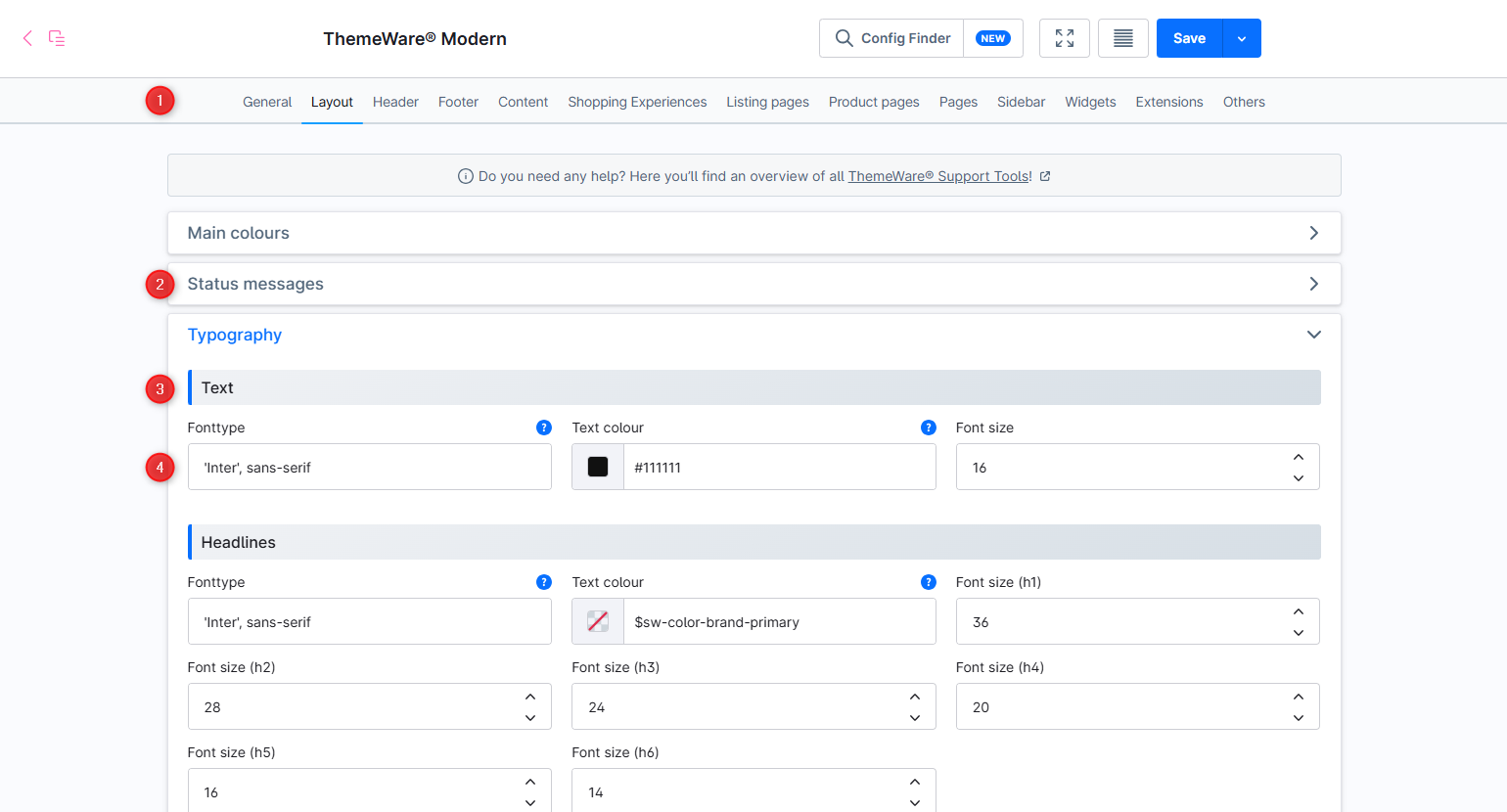
The first level are the tabs (1) at the top of the configuration. Here you see the rough structure of the storefront – such as "Header", "Footer", "Content", "Shopping Experiences" and so on.
The next level are the blocks (2). These are the expandable cards which group the configuration by individual elements – such as the "Logo", the "Top navigation", the "Cookie permission" and so on.
Within a block the configuration fields are grouped once more into sections (3), such as the "Basic configuration", the "Colour configuration", the "Image configuration", the "Font configuration" and so on.
Within these sections you will then find the actual configuration fields (4).
Screenshots
Note: In our documentation, in the changelog and in our support replies we always state the path to a setting in exactly this order: Tab => Block => Section => Configuration. An example: Tab "Extensions" => Block "USP bar" => Section "Colour configuration" => "Background colour (Header)".
Tip: Many configuration fields have help texts  . These are very important. Always have a look at them, they explain exactly what the individual options or the configuration mean and give you valuable guidance.
The tabs at a glance
In principle the ThemeWare® configuration is divided by tabs into the most important parts of the Shopware 6 storefront of a shop.
It starts with the "Layout", which affects the entire shop. Then comes the tab "Header", the top area of your storefront. This is followed by the "Footer", the bottom area of your shop, which you can configure extensively.
In the tab "Content" you will find cross-page content elements such as the "Breadcrumb" or the "Cookie permission". The tab "Shopping Experiences" contains configuration fields around the design of your Shopping Experiences.
The tabs "Listing pages" and "Product pages" contain the configuration for the corresponding page types of your shop.
In addition there are a few special tabs:
First there is the tab "Widgets". Here you will find the configuration for the ThemeWare® widgets. Widgets are a feature of ThemeWare® for Shopware 6. They are content elements which can be output at various places in the storefront (for example payment and shipping methods, social icons). The footer, for instance, consists of these widgets. This means that you configure the footer itself in the tab "Footer" and the widgets you use in it in the tab "Widgets".
Second there is the tab "Extensions". Here you will find larger and completely independent additional features of ThemeWare® which are usually output at a particular place in the storefront (for example the USP bar).
Finally there is the tab "Others". It contains various general configurations for advanced users, beta features and compatibility configurations of the ThemeWare® HC-Architecture®.
Find configuration
The theme configuration is extensive. If you know what you want to change but not which tab it is in, search for it – with the ThemeWare® Config Finder.
It exists twice: as a field search engine in the browser and right inside the theme manager. In the browser you look things up, in the theme manager you change them straight away. The next article shows you how to work with it:
Find configurationSaving the configuration
When you save the configuration, do not be surprised that the theme manager jumps back to the first tab. Unfortunately this is a behaviour of Shopware which we cannot influence. Perhaps it will be fixed with a future Shopware update.
So simply remember which tab you were in. When you switch back to that tab, the corresponding block is always open again.
Tips for the configuration
Make rather small changes, or few changes at a time. Then save and have a look at the effect in the storefront.
Tip: Experience shows that many small steps get you to your goal faster.
If you proceed slowly and in small steps, you can better keep track of what you edited last, which makes further changes or corrections easier.
Perhaps also save or copy which value you changed and what the previous value was, so that you can simply revert the change if you do not like it.