If you would like to use a pure text logo, ThemeWare® of course offers a convenient option for that as well.
Example
You configure the text logo through the ThemeWare® configuration in the Shopware 6 theme manager of your administration.
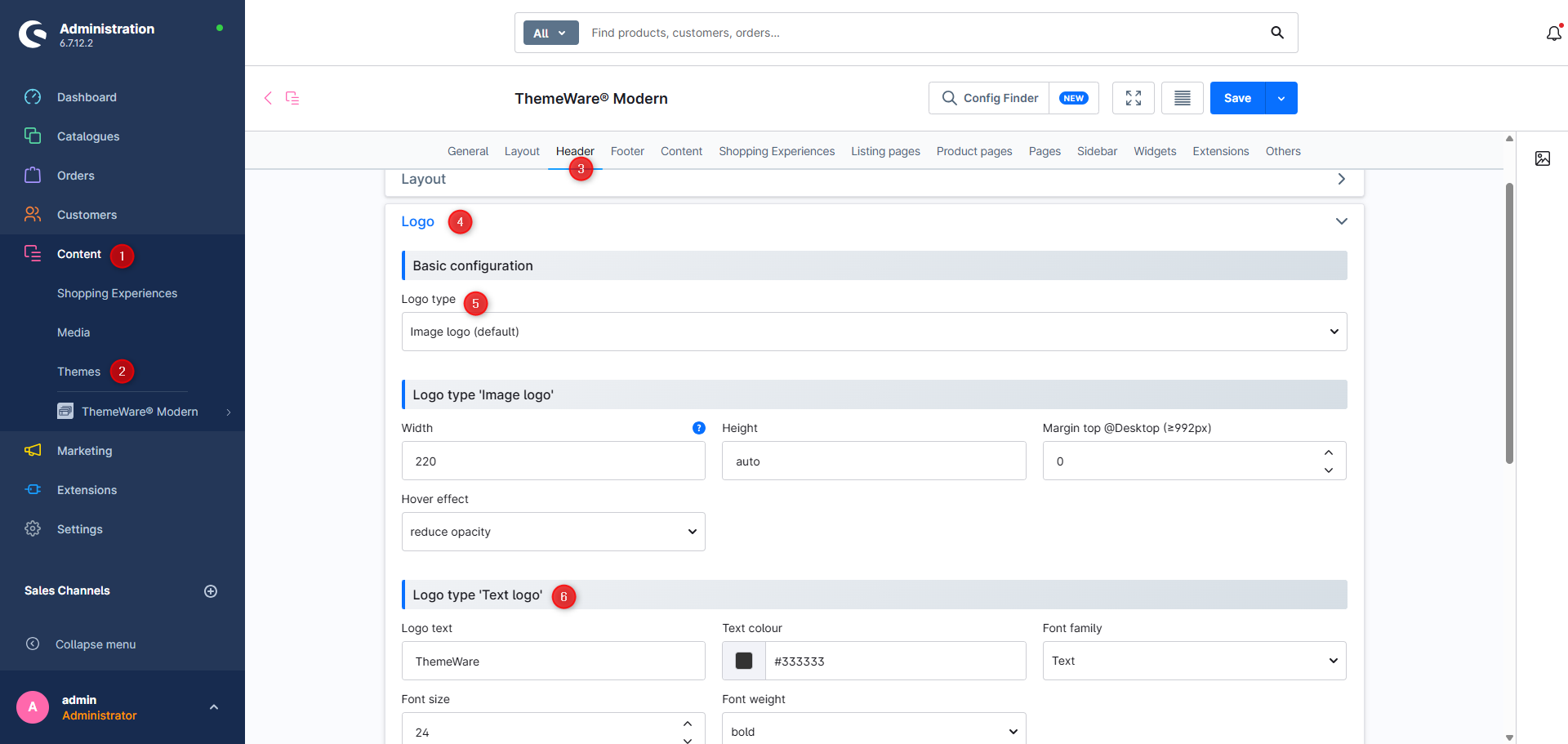
Example: In our example we activate the text logo in the ThemeWare® configuration.
- Open the administration of your shop
- Switch via the main navigation to the "theme administration" (1) (2) ("Content" => "Themes")
- Note: In the Shopware Cloud you will find the "Themes" area directly in the main navigation.
- Now click on your ThemeWare® theme to start editing
- Switch to the tab "Header" (3)
- Open the block "Logo" (4)
- In the section "Basic configuration" select the option "Text logo" in the configuration field "Logo type" (5)
- In the section "Logo type 'Text logo'" (6) you can configure, for example, the "Logo text", the "Font family", the "Font size" or the "Text colour" of the text logo
- We change the "Text colour" to
#0c7ebb - Save the theme configuration
- Switch to the storefront and reload the page
You have now configured the text logo.
Screenshots