
With ThemeWare® you show a second product image in the product listing as soon as your customers move the mouse over a product tile. This lets you reveal the back, a detail or the product in use – without opening the product page. On smartphones and tablets, your customers switch the image with a tap.
Note: You maintain the hover image per product via a custom field and enable the effect in the theme configuration.
Requirements
- a product you want to assign a second image to
- a suitable image for the hover effect in the Shopware media manager
Step 1: Enable the hover effect in the theme
"Theme Manager" => your ThemeWare® theme => "Listing pages" tab => "Product box" block => "Product image" section
Set the "Hover effect" configuration to "hover image (Custom field)" and save your changes.
Step 2: Set the animation and touch devices (optional)
In the same section, you find two more settings:
- "Animation (Hover image)": How the cover image changes to the hover image. You can choose "crossfade", "crossfade with zoom" (default), "reveal (from the side)", "reveal (from below)" and "slide".
- "Hover image on touch devices": With "toggle below the image" (default), a row with two dots appears below the product image on smartphones and tablets. With "don't show", the cover image stays there.
Note: "slide" works best with the display mode "Cropped" or with cut-out images.
Step 3: Add the hover image to the product
"Catalogues" => "Products" => select product => "Specifications" tab => "Custom fields" section => your theme's custom field set
In the "Hover image" custom field, select the desired image from the media manager and save the product.
Result
When your customers hover over a product tile in the listing with the mouse, the cover image changes to the hover image with the selected animation. On smartphones and tablets, they tap the row with the two dots below the image instead, a tap on the image itself opens the product page as usual. If nothing shows up, clear the Shopware cache once.
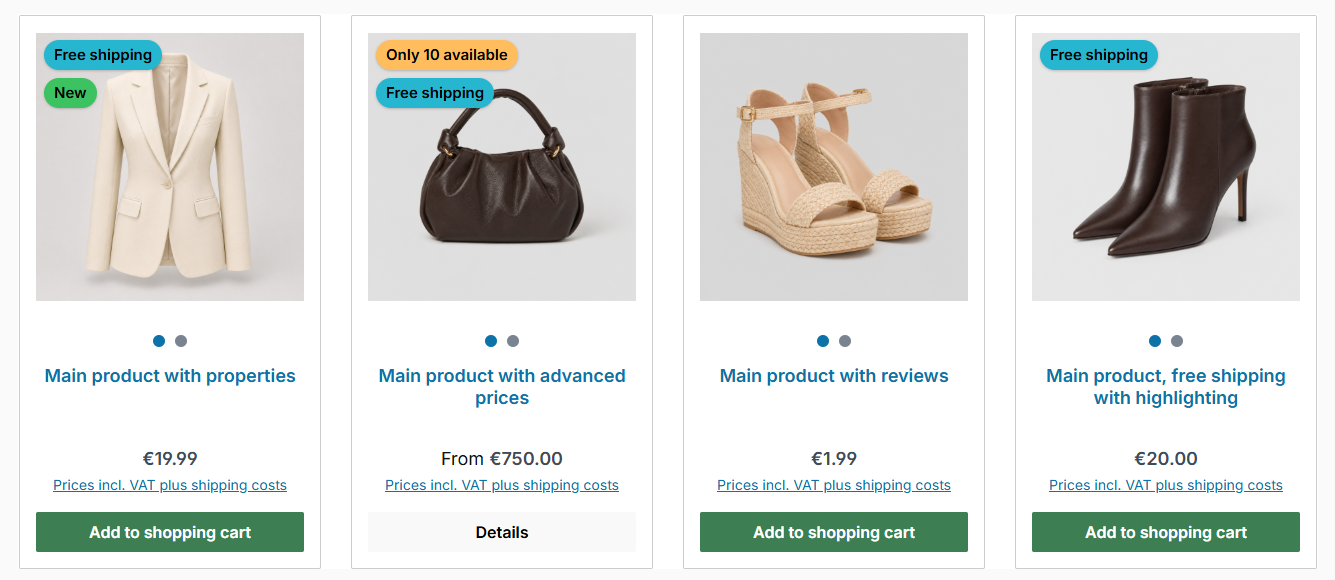
On touch devices, the dots below the image switch to the hover image
ThemeWare® Tip: Use the same aspect ratio for the cover and hover image so the transition stays calm. Extensions that modify the product image themselves can interfere with the "hover image" option – in that case, simply choose a different hover effect.
Further information
You can find all details about the custom field in the ThemeWare® manual: