
With ThemeWare® you embed product videos right on the product page – via a YouTube or Vimeo video ID or as your own HTML5 video. Show your product in action, build customer trust and keep visitors on the page longer.
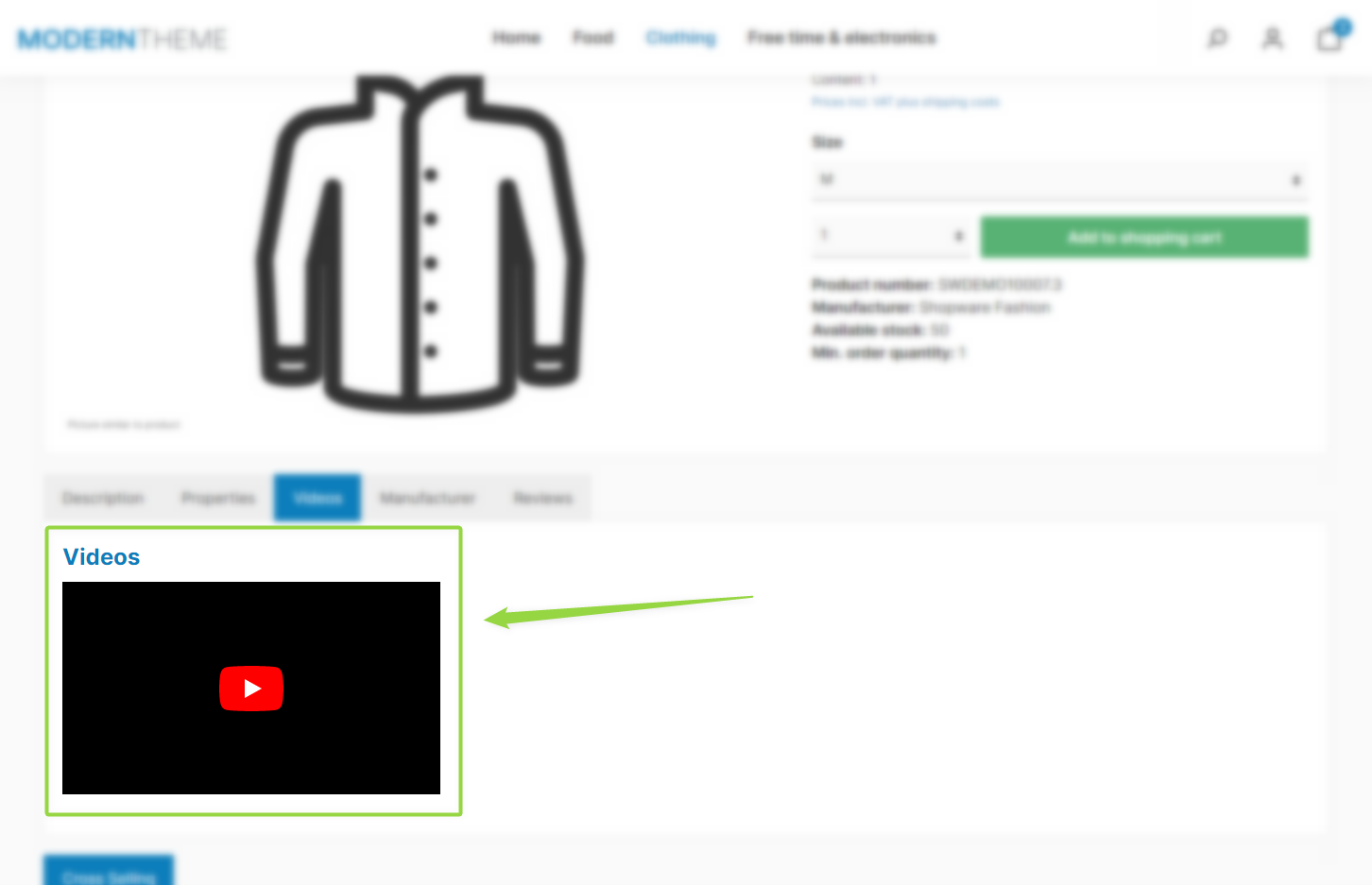
ThemeWare® "Product videos"
Note: The videos are maintained per product via custom fields and appear as soon as you enable the product videos in the theme configuration.
Requirements
- a product you want to assign a video to
- the video ID of the desired YouTube or Vimeo video (or a video file for an HTML5 video)
Step 1: Enable product videos in the theme
"Theme Manager" => your ThemeWare® theme => "Product pages" tab => "Tab "Description"" block => "Product videos" section
Enable "Show product videos" and optionally set the position (above or below the properties). Save your changes.
Step 2: Add the video to the product
"Catalogues" => "Products" => select product => "Specifications" tab => "Custom fields" section => your theme's custom field set
Enter the video ID in the matching custom field:
- YouTube video(s) – the ID after the parameter
?v=from the YouTube address bar (e.g.eVrQ0Lvn5ZI) - Vimeo video(s) – the ID after the last slash
/from the Vimeo address bar - Video 1–3 – alternatively, your own HTML5 video from the media manager
Note: You can enter multiple video IDs comma-separated.
Preview images: For YouTube/Vimeo you define one preview image globally in the theme configuration ("Product pages" tab => "Placeholder (YouTube/Vimeo videos)" section => Layout type "Preview image" + "Preview image" field) – these videos only load after a click for privacy reasons anyway. For HTML5 videos (Video 1–3) you assign the preview image per video in the Shopware media manager.
Save the product.
Result
The videos now appear on the product page at the chosen position. If nothing shows up, clear the Shopware cache once.
ThemeWare® Tip: Use meaningful video titles (custom field "Video 1–3 – Title") – they improve accessibility and SEO. Adjust the headline above the videos via the snippet twt.detail.productVideos.title.
Further information
You can find all configuration options and custom fields in detail in the ThemeWare® manual: