
In this article you will learn how to quickly find a specific setting in the theme manager.
The ThemeWare® Config Finder is built right into the theme configuration. You type in what you want to change and the theme manager hides everything that does not belong to it. Only the matching configuration fields remain – and you change them right there.
Note: The Config Finder in the theme manager is part of the ThemeWare® improvements to the theme configuration. These improvements are currently not possible in the Shopware Cloud.
Find configuration
- Open the theme configuration of your ThemeWare® theme
- Click the "Config Finder" button in the top right
- Type in what you are looking for – for example "
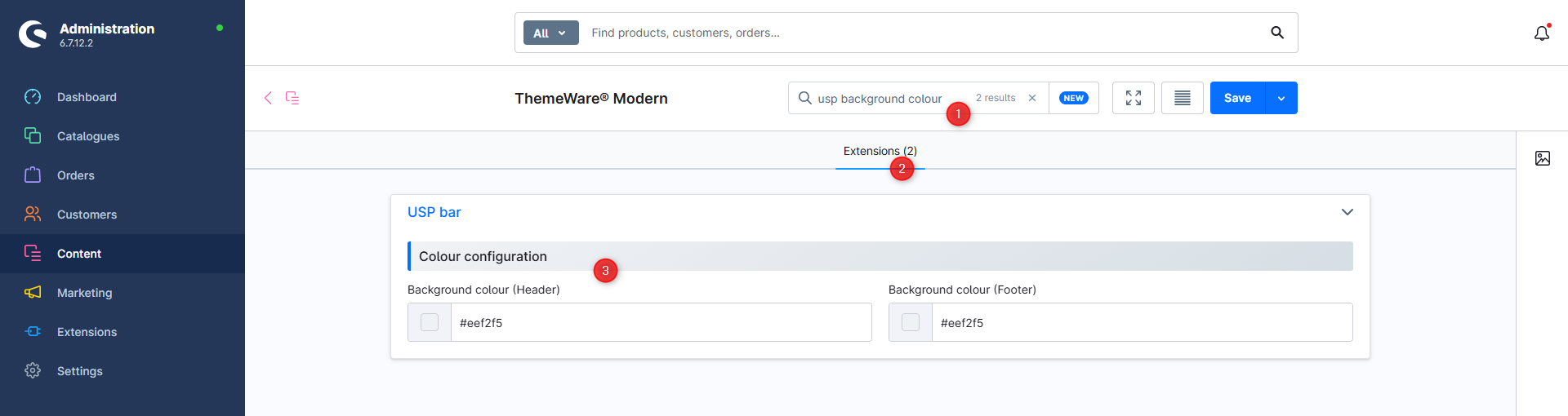
usp background colour" (1) - The theme manager now only shows the blocks and configuration fields that belong to your search term (2)
- Tabs without results disappear from the tab bar, the remaining ones show the number of results (3)
- Switch to the matching tab and change your setting right away
To end the search, click the cross in the search field. As long as the cursor is in the search field, the "Esc" key does the same. The full configuration is then back as usual.
Screenshots
Search tips
The search starts from two characters and runs along with every keystroke. It is therefore worth narrowing your term word by word: "usp" shows you everything about the USP bar, "usp colour" noticeably less, "usp colour background" only the background colours.
The search covers both the label of a configuration field and its technical name. So if a tutorial, a changelog or a support reply mentions a technical name such as twt-header-type, you can find the field with that as well.
If you are looking for a whole block rather than a single field, simply enter its name: on a match in a block heading the Config Finder shows the complete block with all of its configuration fields.
Tip: If you find nothing, use the shorter word stem. The search checks whether your term is contained in the label – "image" therefore also finds "Images" and "Image detail", but not the other way round.
Further information
The Config Finder can also be used from the search bar of the administration, so even when you are not in the theme manager at all. You will find this and all further details in the ThemeWare® Manual.
Besides the Config Finder in the administration it is still available as a field search engine in the browser. There you also see the technical name, an example value and the path to the setting for every configuration field: