
In Shopware 6 icons are embedded by name, for example cart or truck. The drawings behind them come from two collections that Shopware calls "packs": "default" and "solid". You can use these icons in your theme, in templates and in shopping experiences.
Note: In the configuration (and in snippets) ThemeWare® themes use the pack "default". The pack "solid" can only be used manually.
With a ThemeWare® icon set you swap the drawings behind these names for those of another icon library - the names stay the ones from Shopware.
Which icon sets ThemeWare® includes, how they look and what you can configure is described in the ThemeWare® manual:
You will find a dynamic overview of all icons in the ThemeWare® Service Portal:
Including Shopware 6 icons
There are several ways to include Shopware 6 icons, depending on exactly where you want to use the icon.
Including icons in template files
To use icons in a TWIG template file, you can use the sw_icon tag. It is embedded through the tag: {% sw_icon 'icon-name' %}.
Simply pick the icon you need, copy its name and add it as the argument (see 'icon-name').
Example:
{% sw_icon 'truck' %}Note: If you have selected an icon set in ThemeWare® and the "Scope" is set to "All Storefront Icons", sw_icon shows the drawing from that set - as long as the set knows the name. Otherwise Shopware's own icon stays in place.
Note: You will find more on the topic of "individual template customizations" in the following tutorial: Individual template customizations (Twig, HTML)
Including icons in CMS blocks
To include Shopware 6 icons in shopping experiences, you can use a CMS block of the type "Text" or an HTML block. There you enter the HTML <img> tag for the icon you want from the folder /bundles/storefront/assets/icon/....
Example:
<img src="/bundles/storefront/assets/icon/default/truck.svg" />Recent Shopware versions:
Unfortunately the path /bundles/storefront/assets/icon/default/[icon-name].svg no longer works in recent Shopware versions, because Shopware removed the storefront icons from the publicly accessible bundle folder.
It is best to upload the icon you want to your shop via the media management (1) and click "Copy link" (3). That gives you the link through which the image is now reachable in the storefront. Insert this link into your CMS element.
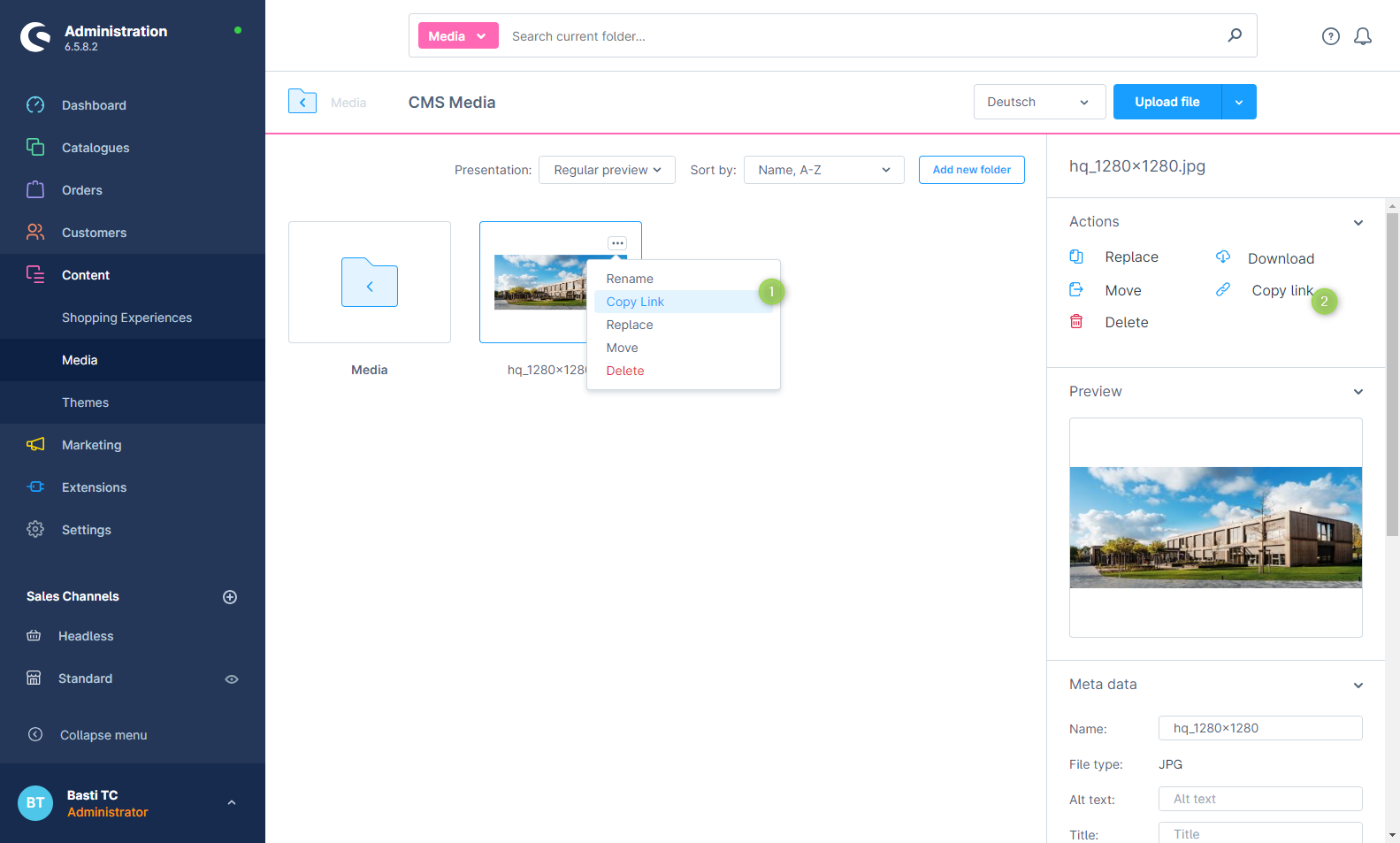
Example:
<img src="http://my-shop.com/media/32/8c/f1/1777296709/truck.svg?ts=1777296709" />Note: An icon that you embed as an image (<img>) is a fixed file. A ThemeWare® icon set does not swap it.
Downloading Shopware 6 icons
If you want to use an icon in your graphics or as an image via the Shopware 6 media management, you can download the icons as an SVG file. You will find the icons on GitHub or in the following folder:
src/Storefront/Resources/app/storefront/dist/assets/icon/Further information
- Manual: Icons
- Manual: Iconsets
- Manual: Social Icons
- Tutorial: Individual template customizations (Twig, HTML)