In this article you will learn everything about theme duplicates in Shopware 6.
Note: Shopware is currently working on improvements to the theme configuration, the inheritance of themes and duplicates.
We will update this article as soon as changes are available.
What is a theme duplicate?
A theme duplicate is basically nothing more than another entry in the Shopware 6 database. It allows you to save an alternative or separate theme configuration (e.g. for further sales channels).
When it is created, the theme duplicate inherits the current configuration from the base theme or parent theme. This is similar to the handling of variant products. You will find more about the configuration further down in this article.
Difference to the theme derivation in Shopware 5
In addition to the database entry for the configuration, theme derivations in Shopware 5 created folders and files on the server, which could be used for individual customisations or to add further files (e.g. fonts).
Unfortunately, a theme duplicate in Shopware 6 does not (currently) provide any folders or files for customisations.
Tip: How you can still make template customisations is explained in our article Individual template customizations (Twig, HTML).
Limitations of theme duplicates
As explained above, individual customisations (e.g. via templates) cannot be made with duplicates.
Base theme vs. theme duplicate
Of course, you can simply get started and configure the base theme. You can create a duplicate at any time and reset the configuration of the base theme if necessary.
When should a theme duplicate be created?
If you need a separate configuration (e.g. for another sales channel), you should solve this with a theme duplicate. It is not necessary to buy or rent another theme for this.
Tip: A theme duplicate can be created at any time later on.
Recognising a theme duplicate
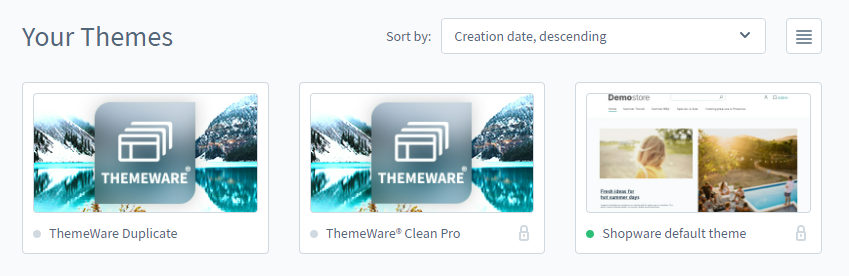
Parent themes cannot be deleted in the "Theme Manager" and therefore have a small lock icon next to their name.
Theme duplicates, on the other hand, can be deleted in the "Theme Manager" and therefore do not have this icon:
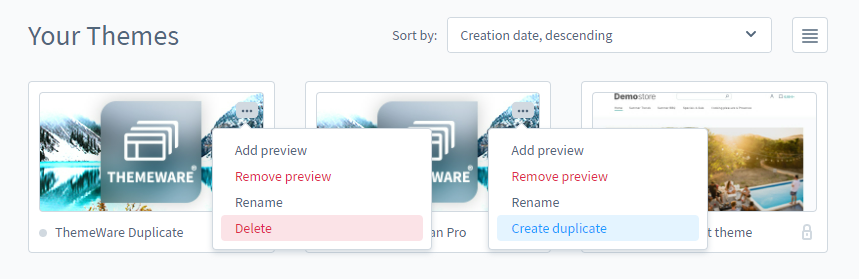
This is also visible in the context menu of the  context button of each theme. In addition, no further duplicates can be created from a duplicate, and base themes cannot be deleted in the Theme Manager:
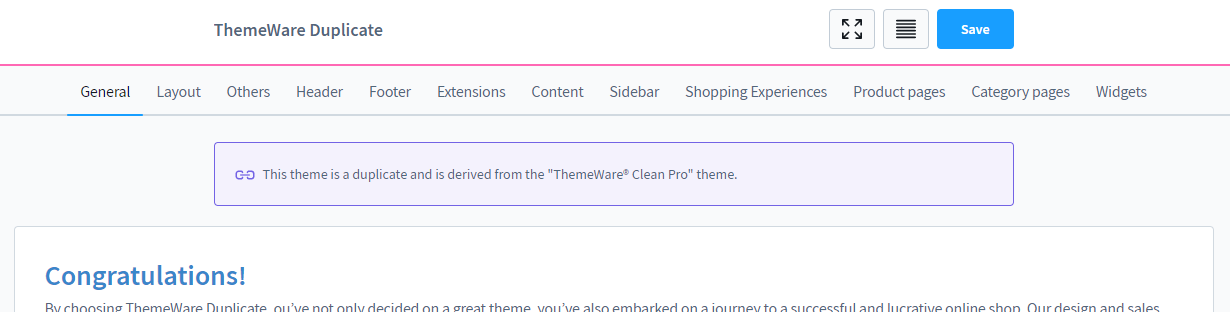
The theme configuration also shows a note that this theme is a duplicate of theme XY:
Creating a theme duplicate
How to create a theme duplicate is explained in the article: Creating a theme duplicate
Renaming a theme duplicate
How to rename a theme duplicate is explained in the article: Renaming a theme duplicate
Configuration of a theme duplicate
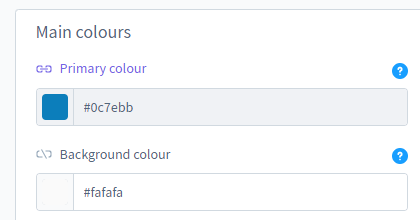
Configuration fields in a theme duplicate are greyed out. This means that the configuration field is inherited from the base theme and therefore corresponds to its configuration field.
You probably know the handling of inherited configuration fields from variant products.
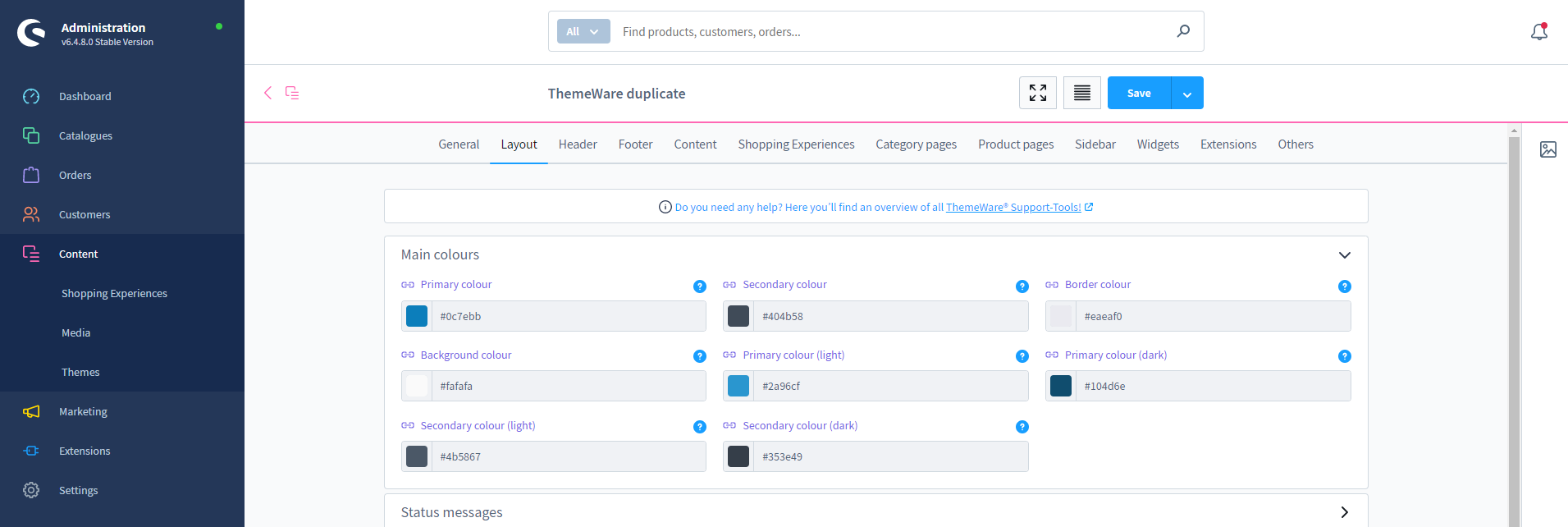
Remove inheritance
If you want to configure a field differently, simply click on the "anchor" icon  "Remove inheritance".
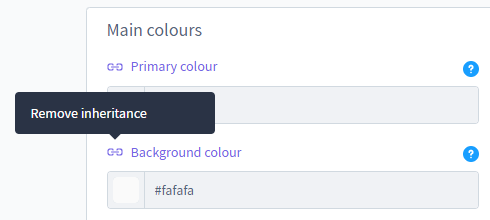
Restore inheritance
If you want to use the value from the base theme for a configuration field again, i.e. restore the inheritance, click on the "anchor" icon  "Restore inheritance".