
The different shop logos in the theme configuration have different purposes and requirements. The corresponding graphics therefore partly need different sizes to be displayed optimally.
Note: You will find the basics of configuring the shop logo in the ThemeWare® introduction: Configuring the logo
Logo @Desktop (≥1200px)
If the viewport is larger than 1200px, the desktop logo is displayed.
Logo @Tablet (≥768px)
Between 1200px and 767px, the tablet logo is displayed.
Logo @Phone (<768px)
If the viewport is smaller than 767px, the phone logo is displayed.
Logo (Sticky top navigation)
Small logo for the ThemeWare® sticky top navigation.
Logo (Shopping Experiences Header)
Alternative logo for use in the ThemeWare® shopping experiences header.
App & share icon
The app & share icon is displayed as a preview, for example, when the page is shared on social networks.
Favicon
The favicon is displayed in the browser in front of the URL.
Tip: Simply use our PSD files from the image template download package, which you receive via the ThemeWare® Utilities, as a guide.
File format
The Shopware 6 media manager currently supports the following file formats:
Image formats: jpg, jpeg, png, webp, gif, svg, bmp, tiff, tif, eps
Video formats: webm, mkv, flv, ogv, ogg, mov, mp4, avi, wmv
Audio formats: aac, mp3, wav, flac, oga, wma
Text formats: txt, doc
Other: pdf
In principle, the image formats gif and bmp are also suitable for screens, but for your shop logo we recommend the image formats jpg, jpeg, png or WebP.
Pixel graphics
The standard are jpg or jpeg files. If your logo should use transparency, use the png format. These three image formats are pixel graphics, often also called raster graphics.
With pixel graphics it generally makes more sense, from a visual point of view, for the graphic to be displayed smaller rather than enlarged. It is therefore better to use a slightly larger graphic than actually needed. But make sure that the graphic is not far too large!
In addition, it can help to optimise the file size of pixel graphics with a free tool such as TinyPNG.
Vector graphics (*.svg)
As you may have noticed, one of our recommended image formats is still missing. The svg format is not a pixel graphic but a vector graphic.
Vector graphics are composed of lines, circles, polygons or curves. For these graphics, not every single pixel of a circle is saved but, to put it simply, the position of the centre of the circle and its diameter.
This has several advantages: the file size of vector graphics is often smaller than that of pixel graphics, and they can be scaled as required without any loss of quality.
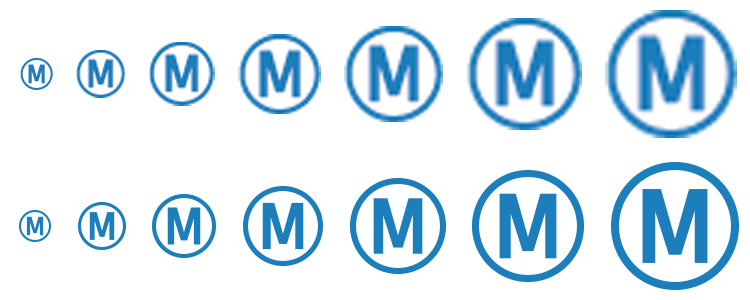
The advantages of lossless scaling are particularly relevant in responsive web design. With vector graphics you can make sure that your logo is always displayed cleanly and sharply on all devices with a wide range of sizes and resolutions.
Tip: An agency, a graphic artist or a designer can certainly create a suitable SVG vector graphic of your logo from your pixel graphic.
Note: If you have problems with SVG graphics, it is best to use more modern image formats such as WebP.
File size and PageSpeed
The file size should not be underestimated with regard to PageSpeed. Below we would like to give you a rough idea using the example of the  logo shown above.
The M logo with 300x300 pixels has a file size of approx. 16 KB as a png pixel graphic. Without any visible loss of quality, TinyPNG manages to compress the same graphic to 7 KB. That is a saving of almost 60%.
The vector graphic of the M logo has a file size of 1 KB and clearly has the advantage here.
Please note that a vector graphic does not necessarily have to be smaller than a pixel graphic. There are graphics (depending on their complexity and fine detail) where a pixel graphic has an advantage over the vector graphic.
However, the example shows very well how much room for optimisation pixel graphics can offer.
It is perfectly fine to use pixel graphics, but make sure to use all optimisation options.
The optimal image size
The question of the optimal image size cannot be answered in general terms.
ThemeWare® is extremely customisable, and this includes a configuration for the size of your logo. In addition, the headers use a fluid design, which means that how much space the logo can ultimately take up also depends on factors such as the actual header layout or the length of the main navigation.
Another important factor is, of course, the configured logo size itself.
All these factors have a direct influence on the logo size, so a "perfect image size" simply cannot be predicted.
If you follow our demo shops and work with the basic configuration of your ThemeWare® theme, simply use our PSD files from our image template download package.
Otherwise, you have to determine the perfect image size yourself.
Tip: If you use modern formats such as vector graphics (*.svg) or WebP for your logo, you can simply use the same graphic for all viewports, provided the logo is always identical in content.
Our recommendation: WebP
We recommend the WebP file format. WebP is a graphics format with lossless image compression for static or animated images.
The improved compression of WebP means that less storage is required and pages with images in WebP format load faster. By the way, the compression is better than with JPEG.
The WebP format is also the only format that supports the transparent backgrounds of PNG and the animation options of GIF.
Further information
- Introduction: How to add logos to your shop is explained in the article Adding your logo
- Introduction: How to configure logos in your shop is explained in the article Configuring the logo
- Tips: Logo design tips
- Tool: TinyPNG PNG and JPEG compression