
Navigation

ThemeWare® Knowledge Base

Renaming a theme duplicate

How to give a theme copy a new name via the context menu in its preview image in the Theme Manager.

In this article you will learn how to rename a theme duplicate.

  1. Open the administration of your shop
  2. Navigate via the main navigation to the "Theme Manager" ("Content" => "Themes")
    • Note: In the Shopware Cloud you will find the "Themes" area directly in the main navigation.
  3. Click on the Renaming a theme duplicate, figure 1 context button at the top right of the preview image of the theme duplicate to open the context menu
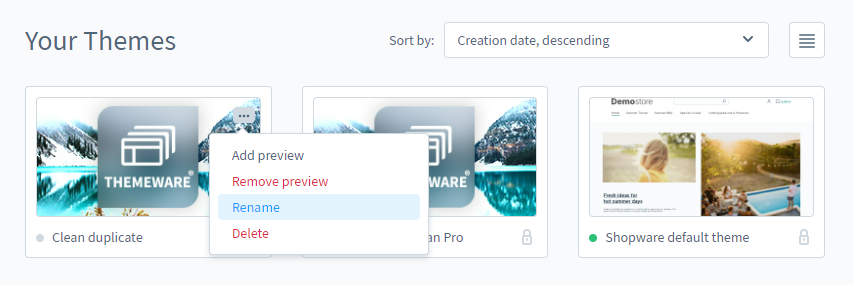
    Renaming a theme duplicate, figure 2
  4. Click on "Rename"
  5. A pop-up appears in which you can change the name of the duplicate
  6. Confirm the change with "Save"

Last updated on

More from ThemeWare®: About ThemeWare® · Demoshops · Manual · Video tutorial · Utilities

This page online: https://knowledge.themeware.design/knowledge-base/shopware/configuration/themes/renaming-a-theme-duplicate · ThemeWare® Service Portal, service.themeware.design